Ready to take payments?
Start here looks at your shop the way a customer would meet it - from your page, to the basket, to Stripe, to the emails afterwards - and tells you, in one place, anything that would stop them paying.
Start here is the first item under Bang! Cart in the WordPress sidebar. Under the setup steps it has two cards: Ready to take payments?, always, and Going live, while you are in test mode. Both are measured fresh every time you open the page, so they describe your shop as it is now, not as it was when you set it up.
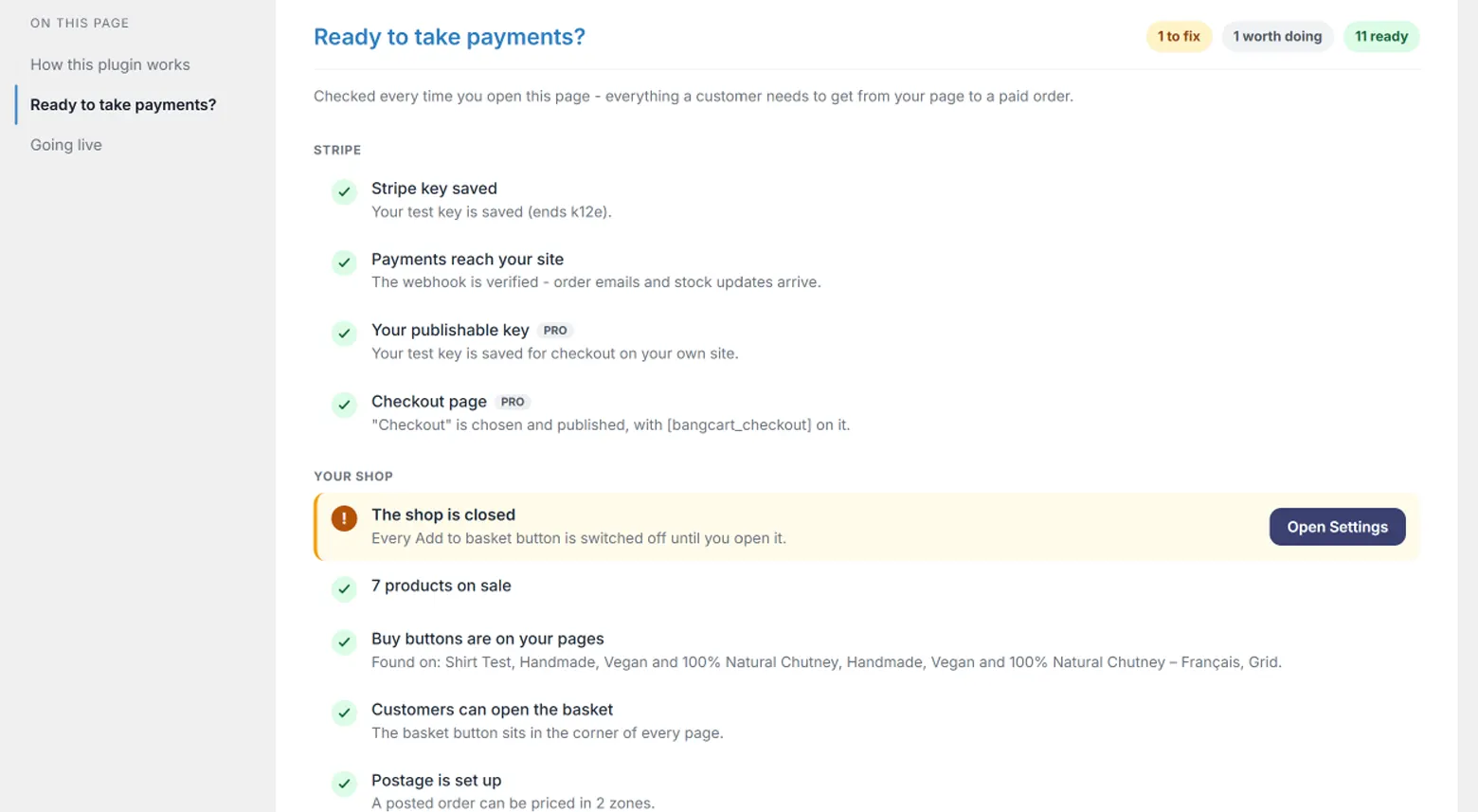
Amber, grey and green
| Colour | What it means |
|---|---|
| Amber - to fix | A customer cannot pay, or you would not hear about it if they did. Fix these before anything else. |
| Grey - worth doing | The shop works without it, but it is better with it - a thank-you page of your own, your business address in the emails, and your choice of what happens to the shop's data if the plugin is ever deleted. |
| Green - ready | Checked, and fine. |
The counts at the top of the card add them up: 2 to fix, 1 worth doing, 9 ready.
What it checks
Stripe
- Your Stripe key - that one is saved for the mode you are in. Without it, checkout cannot start. See Creating your Stripe key.
- Payments reach your site - that the webhook is set up and verified. Without it, payments go through but order emails are not sent and stock is not taken off. See The webhook.
Your shop
- The shop is open - a closed shop switches every Add to basket button off.
- Products on sale - that at least one product can be bought, and for any that cannot, why: no price, a download with no file, sizes switched on with none priced. See Products and stock.
- Buy buttons on your pages - which pages your
[bangcart_button]shortcodes are on, by name. It reads every published item - pages, posts, Elementor, Beaver Builder, Bricks and Oxygen content and templates, block patterns - and your widgets. Anything that is not a page is named with its kind: Plugins Test Homepage (Elementor template). - The basket - if you chose to place the basket yourself on the Design tab, that
[bangcart_cart]is on a page. - Postage - that at least one delivery zone gives a price for a one-item order, so a customer posting something can check out. See Postage zones and services.
After they pay
- Order emails - that your copy has an address to go to, when the last one was sent, and whether the last one failed. See Emails.
- Thank-you page - which page customers land on after paying.
- Your business address - shown on invoices and in the cancellation wording. UK shops selling to the public should show it.
Bang! Cart Pro adds its own rows. With checkout on your own site switched on, Start here also checks your publishable key and that your checkout page is published with [bangcart_checkout] on it. Rows Pro adds are tagged PRO.
The buttons take you to the exact spot
Every amber or grey row has a button - Open Stripe tab, Open Products, Open Emails and so on. It does not just open the right page: it scrolls to the field, section or product that needs you, outlines it in amber for a moment and puts the cursor in it. A product that is not on sale opens with the setting that stops it already open.
Fix it, come back to Start here, and the row has turned green.
When you are somewhere else
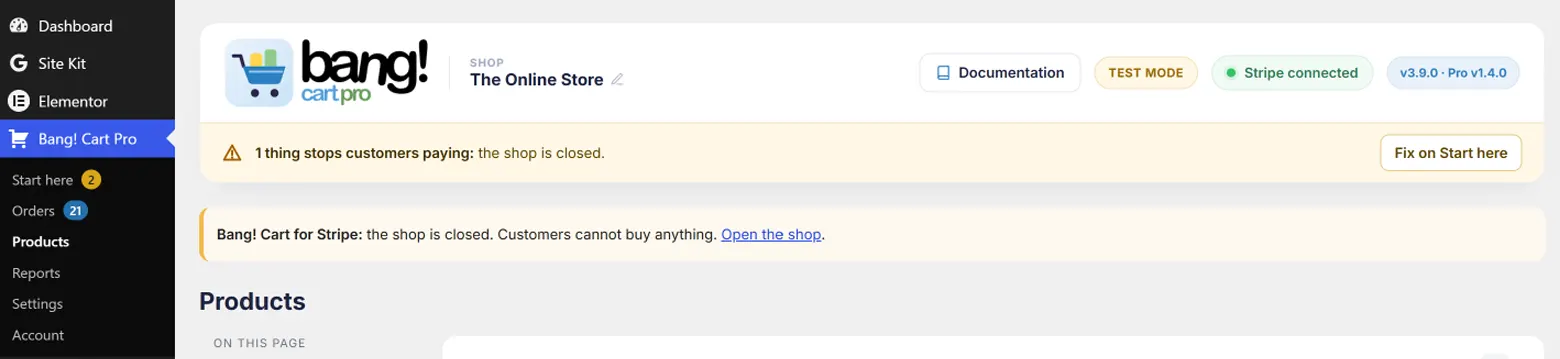
You do not have to visit Start here to find out something is wrong. While anything is amber:
- Start here in the WordPress sidebar shows an amber number - how many things need fixing, plus any grey rows still worth doing.
- Every other Bang! Cart page shows a short amber bar at the top naming the problem, with a Fix on Start here button.
Once nothing is amber, the number turns grey and counts only the worth-doing rows - the order emails you have not tested yet, no thank-you page, no business address, the delete choice. They never stop a sale, so there is no bar, but the number stays until they are done.
Both go by themselves once everything is fixed. They keep watching after setup is finished, so a key deleted next month, or a webhook that stops answering, shows up straight away.
The Going live card
While you are in test mode, a second card lists the steps from test payments to real ones, ticked as you do each:
- Everything above is ticked - nothing amber left on the first card.
- Make your restricted live key - one button on the Stripe tab, as you did for test.
- Verify the live connection - live payments go to a separate webhook; one press sets it up once your live key is saved.
- Switch to live mode - on the Stripe tab. The TEST MODE badge goes and real cards are charged.
- Buy something small for real, then refund it - the only way to be sure the live journey works end to end. It ticks itself when a live order comes through.
With Pro and checkout on your own site, it also asks for your live publishable key. The full checklist, with the jobs Start here cannot see for you - real postage prices, your email delivery, Stripe's own emails - is in Going live.
If a row looks wrong
- A button is "found" on something you have drafted or deleted. It is somewhere else too - the row names it, with its kind in brackets when it is not a page. An Elementor template or a saved block pattern that still holds the shortcode is the usual one.
- "No buy buttons found" when there are. Your page builder may store pages somewhere the scan does not read. The shop still works; a completed test payment proves it better than any scan.
- "Couldn't look at your pages just now" in grey. The page scan could not run on your hosting. Nothing is wrong with the shop.
- Order emails "sent", but nothing arrived. Start here can only see that WordPress handed the email over, not that it was delivered. See Emails for making delivery reliable.
Still stuck?
Write to me and it is me who answers, not a ticket queue. Tell me what you expected and what happened instead.