Emails
Two emails per order, both optional, both built by the same code that draws the preview. What you see on the Emails tab is exactly what gets sent.
The two emails
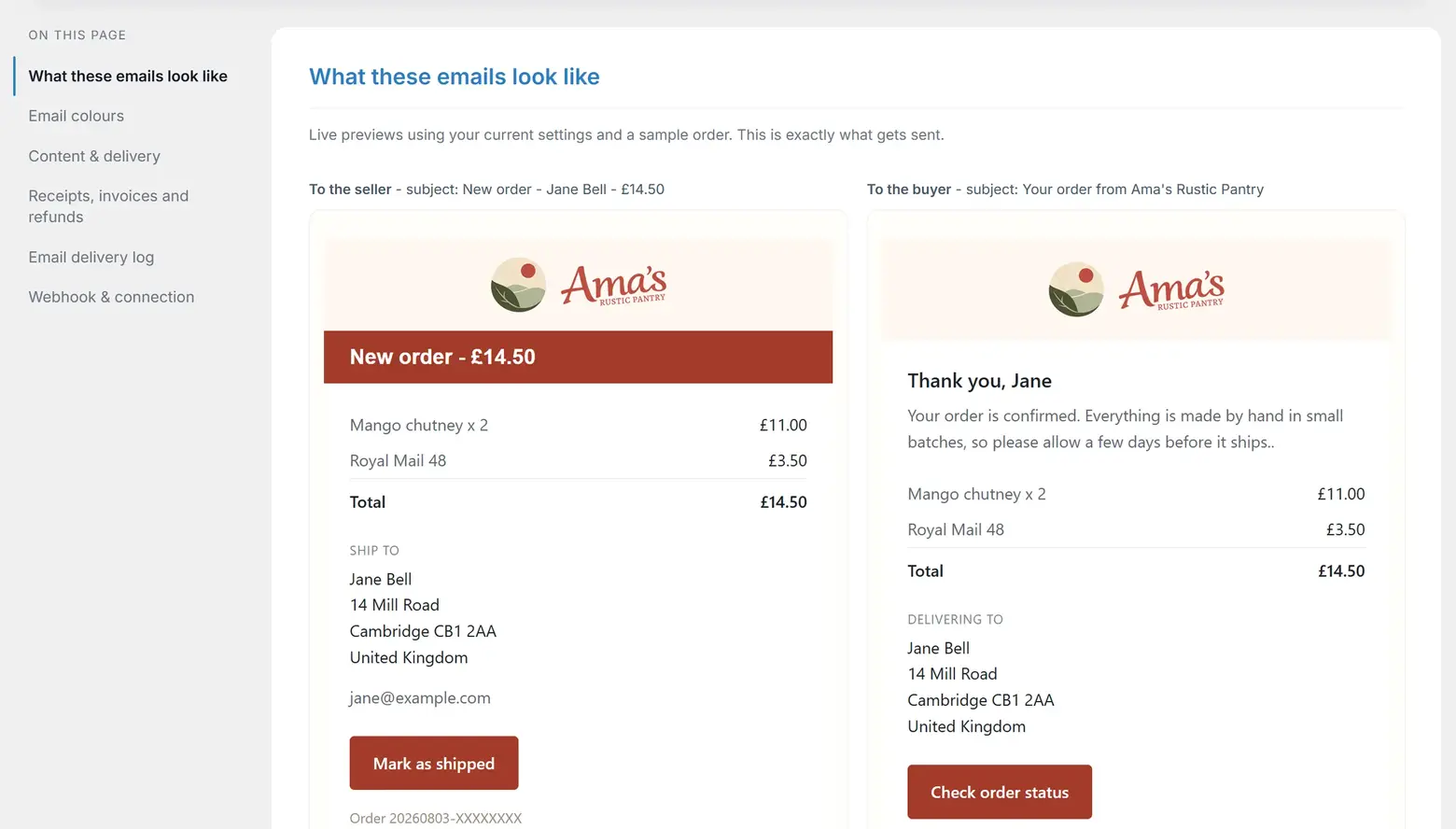
| What it carries | |
|---|---|
| To you | The items and totals, the delivery service, the delivery address or the collection note, the buyer's email address, and a Mark as shipped button that updates your website. |
| To your customer | Your logo or shop name, your greeting and message, the items and totals, their delivery address or your collection details, and a Check order status button. |
Each has its own switch under Which emails to send, so you can turn either off.
Replies work both ways. Your notification replies straight to the buyer; their confirmation replies to the address you nominate.
Tokens
Six placeholders you can type into subjects, the greeting, the message, both footers and the cancellation and returns wording. Each one is click-to-copy on the tab.
| Token | Becomes |
|---|---|
{customer} | The buyer's full name, for example Jane Bell |
{first_name} | Their first name, for example Jane |
{shop} | Your shop name |
{total} | The order total, for example £14.50 |
{items} | How many items were bought, not counting postage |
{order} | The order reference, for example 20260730-A1B2C3D4 |
A token the plugin does not recognise is left visible rather than blanked, so a typo shows itself instead of vanishing silently. An empty footer line is hidden entirely.
Bang! Cart Pro: what your customers typed arrives here too. If you ask for order or product notes - a name to engrave, a delivery instruction - the words reach both emails, the PDF receipt, the Mark as shipped page and the customer's order status page, without a token to place or a setting to find. Asking is a Pro feature; the free plugin has no way to ask.
Your logo
Choose an image under Logo. It goes at the top of the buyer's email always, and on your seller notification too if you tick that box. It also appears on the customer's order status page and on the PDF receipt.
Use a PNG or a JPEG, around 300 pixels wide. Leave it empty to use your shop name as text instead.
Many email apps block images by default, so your shop name is always in the image's alt text. It is worth remembering that email apps also ignore web fonts, which is why the previews use standard serif and sans faces: your logo is the way to carry a brand typeface into an inbox.
Why not WebP
Gmail cannot display WebP. Every image in every email is fetched through Google's own image proxy, and where the file is a WebP that proxy converts it to JPEG - a conversion that tears logos apart. The customer sees the top corner of your artwork and then flat colour where the rest should be. It looks exactly like a corrupt upload, and the same file is perfect on your website, in the admin preview and everywhere else you look, which is why the fault can run for months without anyone catching it.
Few shops pick a WebP logo on purpose. Image-optimiser plugins convert a whole media library to WebP when they are installed, logo included - months before anyone thinks about an email.
From 3.7.1 the plugin handles this for you. Choose a WebP (or AVIF) and a PNG copy is made automatically; the emails carry the copy, and a green note under the Logo setting says so. There is nothing to do. Your original file is untouched, and the order status page and the PDF receipt were never affected - only email needed the copy.
Two cases the plugin cannot fix on its own, and the tab warns you plainly about both. If your server's image library cannot read WebP, no copy can be made - upload a PNG or JPEG version of your logo and choose that instead. And if an image-optimiser plugin converts images as they are served, it can hand out even the PNG copy as a WebP: exclude your logo from conversion in that plugin's settings, then save the Emails tab again and the plugin re-checks.
Fixed the file yourself and Gmail still shows it torn? Gmail keeps its own copy of every image it converts, filed under the image's address, for a long time - replace the file without changing its name and the broken version keeps being served. Upload the fixed logo as a new file, so it has a new address, and choose that. The plugin's automatic copy sidesteps this trap for you: it is always written under a fresh name.
Colours
By default the emails follow your button colours from the Design tab. Untick Follow my button colours to set them separately: header and button, the text on that colour, the logo band, the email body and the background.
Cancellation and returns - the legal block
The buyer's confirmation carries a Cancellation and returns section. On the Emails tab, beneath the buyer wording fields, a checkbox - Include cancellation and returns information in the buyer's confirmation - switches it, and a full-width wording box beneath holds the text, pre-filled and ready to send.
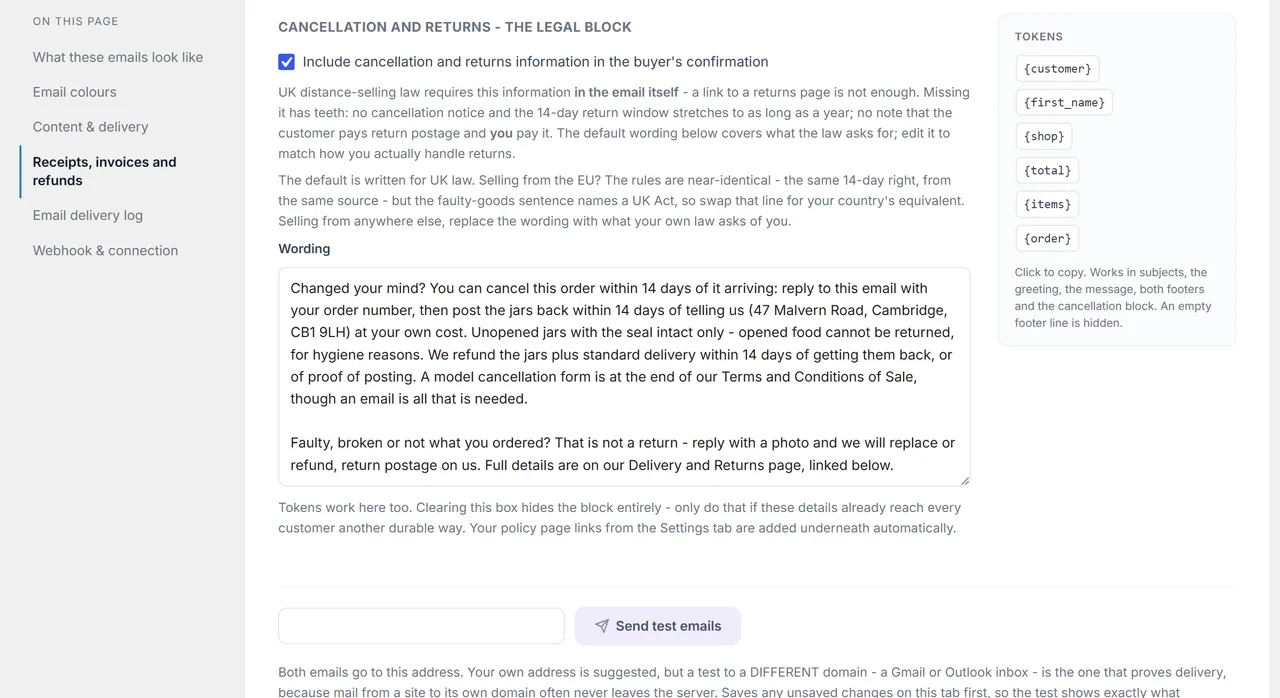
It exists because of UK distance-selling law. The Consumer Contracts Regulations 2013 require this information on a durable medium, and a link to a returns page does not count: the page behind a link can change after the sale, so the words themselves must be in the email. Missing them is expensive. Leave out the notice of the 14-day cancellation right and the window stretches to as long as a year; leave out that the customer pays return postage and you pay it instead.
That is why it is on by default, for existing shops too. The shop owner who has never seen this setting is exactly the one who needs the text, so upgrading starts every shop with the wording in place rather than waiting to be asked.
The default wording
The shipped text covers what the law asks for: the 14-day right and how to use it, the deadlines, who pays return postage, when the right does not apply, faulty-goods rights under the Consumer Rights Act 2015, and how to complain. Treat it as a strong starting point rather than a finished job: edit it to match how you actually handle returns, which is exactly what the tab itself asks of you.
One line deserves particular care when you do. The exemption reads "goods that deteriorate or expire rapidly, such as fresh food (sealed long-life goods are not in that category and can be returned)" - deliberately kept close to the statute's wording. Resist tightening that to "perishables": it sounds neater but claims a wider exemption than the law grants, and an exemption you overstate is a refund you still owe, plus an argument you started.
Editing it, and switching it off
- The six tokens work in this box just as they do everywhere else.
- Clearing the box hides the block entirely. Only do that if these details already reach every customer another durable way.
- Once you save the Emails tab, your stored wording is yours for good. Upgrades never rewrite a saved email, so no future default will overwrite your edit.
Selling from outside the UK
The default is written for UK law. Selling from the EU, the rules are near-identical - the same 14-day right, from the same source directive - except that the faulty-goods sentence names a UK Act, so swap that one line for your country's equivalent. Selling from anywhere else, replace the wording with what your own law asks of you. The tab says the same beside the box.
Policy pages - the links underneath
Under the legal block, the email carries links labelled Returns policy, Terms of service and Privacy policy. They come from the Policy pages card on the Settings tab, just after Shop basics.
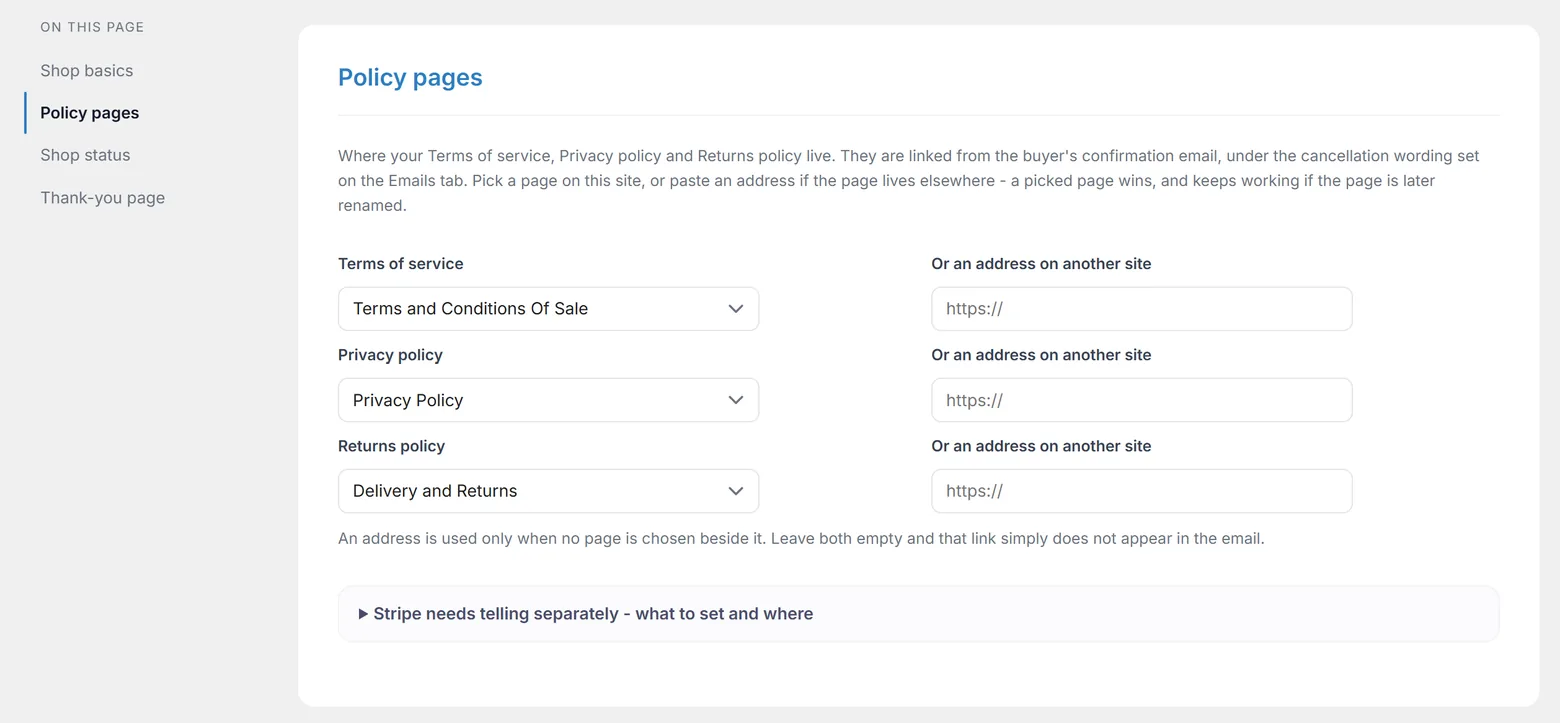
Each policy has two fields: a dropdown of this site's published pages, and an address box for a policy that lives on another site. Two rules worth knowing:
- A picked page wins over a pasted address, and it is stored as the page itself rather than its address - rename the page later and the email link keeps working.
- A pasted address is checked when you save. An address that does not answer earns a warning, never a refusal, because the save is how you record what the address is going to be. Fix it before the next order and nothing is lost.
Leave both fields empty and that link simply does not appear in the email.
The consent line on Stripe's payment page
Separate from the email: the "By placing your order, you agree to our Terms of Service and Privacy Policy" line under the Pay button on Stripe's checkout. The plugin cannot switch that on - Stripe only accepts these settings through its own Dashboard - so the Policy pages card's fold walks you through it. Two places, and both are needed:
- In Stripe, under Settings → Business → Public details, paste your Terms of service and Privacy policy addresses.
- Under Settings → Checkout and Payment Links, turn on Display agreement to legal terms.
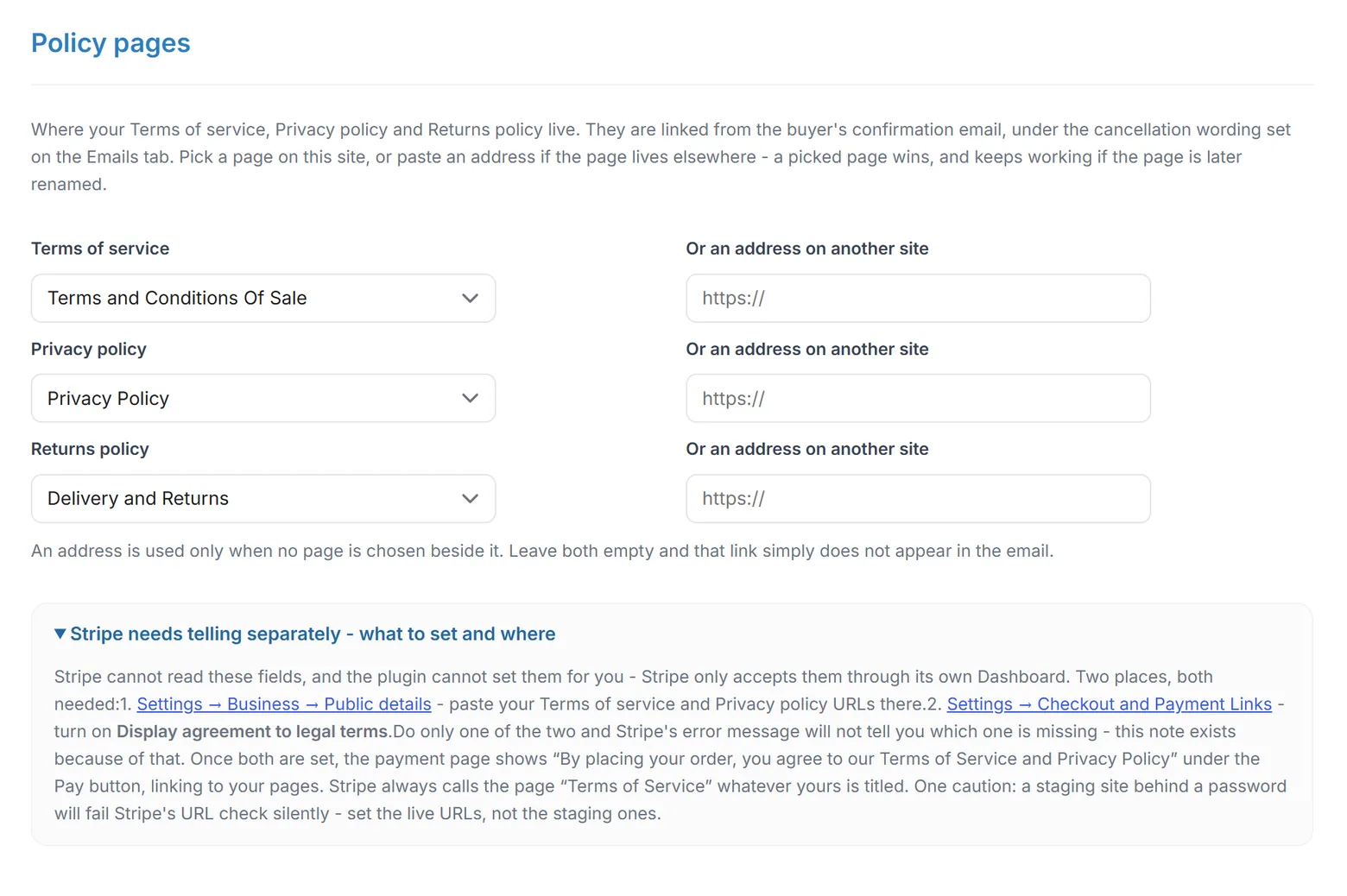
Do only one of the two and Stripe's error will not tell you which is missing - that trap is the whole reason the walkthrough exists. Two smaller details: Stripe always labels the page "Terms of Service" whatever yours is titled, and a staging site behind a password fails Stripe's address check silently, so give it the live addresses, not the staging ones.
Send test emails
At the foot of Content & delivery, an address box sits beside the Send test emails button. Both templates go to whatever address you type, with a sample order and subjects prefixed [Test]. Your seller address is suggested, the last address you used is remembered, and a mistyped address refuses with an error rather than quietly sending somewhere else.

Send the test to an inbox on a different domain - a Gmail or Outlook address, not one at your own site. Mail from a site to its own domain often never leaves the server, so a test to yourself can pass while every customer email vanishes. The test that lands at Gmail is the test that proves something.
Sending saves any unsaved changes on the tab first, so what arrives is what customers will actually get rather than the wording you just replaced.
Receipts and invoices
One setting, Invoice / receipt document, with two choices: no document at all, or the plugin's own PDF receipt. There is no third option, in free or in Pro. The default is None, so a fresh install sends no document until you pick one.
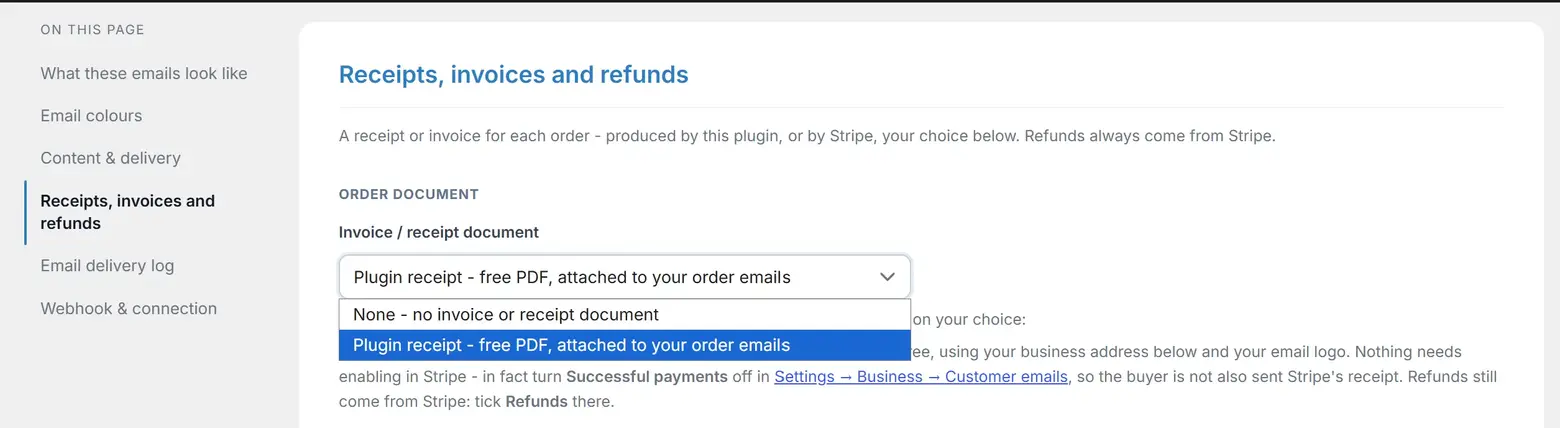
| Choice | What happens |
|---|---|
| None | No document goes to the customer. You can still download a receipt yourself from the Orders tab. |
| Plugin receipt | The plugin's own PDF receipt, free, attached to both order emails. |
Earlier versions of Bang! Cart Pro added a third choice, a Stripe-issued invoice. It was withdrawn in Pro 1.0.0, because the plugin's own receipt does very nearly the same job and Stripe charges a fee per invoice for the difference. A shop that had chosen it sees that honestly rather than losing it quietly: the setting stays selected, labelled set by an add-on that is not active, and a note explains that no document is produced until you choose the plugin receipt. Nothing is switched behind your back.
Your Business address field sits in the same card and is printed on the plugin receipt beneath your shop name.
Refunds
Refunds always come from Stripe. Tick Refunds under Settings, Business, Customer emails in your Stripe dashboard and Stripe tells the buyer automatically.
If you are using the plugin's own receipt, you may want to turn Stripe's Successful payments email off so customers get one document rather than two. Leave Refunds on regardless.
When emails do not arrive
This is the most common support question any WordPress plugin gets, and the honest answer is usually not about the plugin.
- Is the webhook connected? Order emails are sent from the webhook and nowhere else - no webhook, no order emails. (The test and resend buttons still work, because you are pressing them.) See The webhook.
- Are the emails switched on, and is the address right?
- Press Send test emails - to an address on a different domain - and watch the delivery log.
- Read the Email delivery log. It keeps the last ten attempts. If a row says Failed, the reason is there.
"Sent" means WordPress handed the message to your mail server. It does not prove it arrived. If every row says Sent and nothing lands, the problem is delivery, not the plugin. WordPress sends mail straight from your web server, unauthenticated, and spam filters bin it silently. Install an SMTP plugin such as WP Mail SMTP and connect a real sending service like Brevo, Postmark or MailerSend. No plugin can fix this from inside WordPress.
Test to an address on a different domain from your website - the address box beside Send test emails exists for exactly this. Mail to your own domain can succeed for reasons that will not hold for anybody else.
Still stuck?
Write to me and it is me who answers, not a ticket queue. Tell me what you expected and what happened instead.