Creating your Stripe key
Bang! Cart connects to Stripe with a restricted key: a key that can only do the jobs the plugin needs. One click in Stripe creates it with every permission already set.
Stripe asks businesses to connect plugins with a restricted key rather than their standard secret key, and says it may charge a fee to those that do not. A restricted key is also simply safer: if it were ever leaked, it could not move money, issue refunds or touch anything Bang! Cart does not use.
The key is pasted into the plugin's Stripe tab and stays on your own server. Customers never see it. Start in test mode: test and live keys are separate things in Stripe, so you will create a second key in live mode when you are ready to open. Going live covers that moment.
Creating a restricted key
From Bang! Cart 3.7.3 the button is built in. Open the Stripe tab and press Create your test key in Stripe. It does the same as the links below and the four steps are printed beside it, so you need not leave the tab. This page is for anyone reading ahead, or on an older version.
The quick way: one link
These links open Stripe's create-key screen with the name and every permission already set for Bang! Cart. Nothing else is switched on.
Create a test key in Stripe Create a live key in Stripe
- Sign in to Stripe if asked. The screen opens with the key name Bang! Cart filled in.
- Look down the list if you would like to check it against the table below, then press Create key. Stripe may ask for a code from your phone.
- Copy the new key straight away. Stripe shows it once, and you cannot reveal it again after pressing Done. Paste it into the matching box on the plugin's Stripe tab and save.
Or set it up by hand
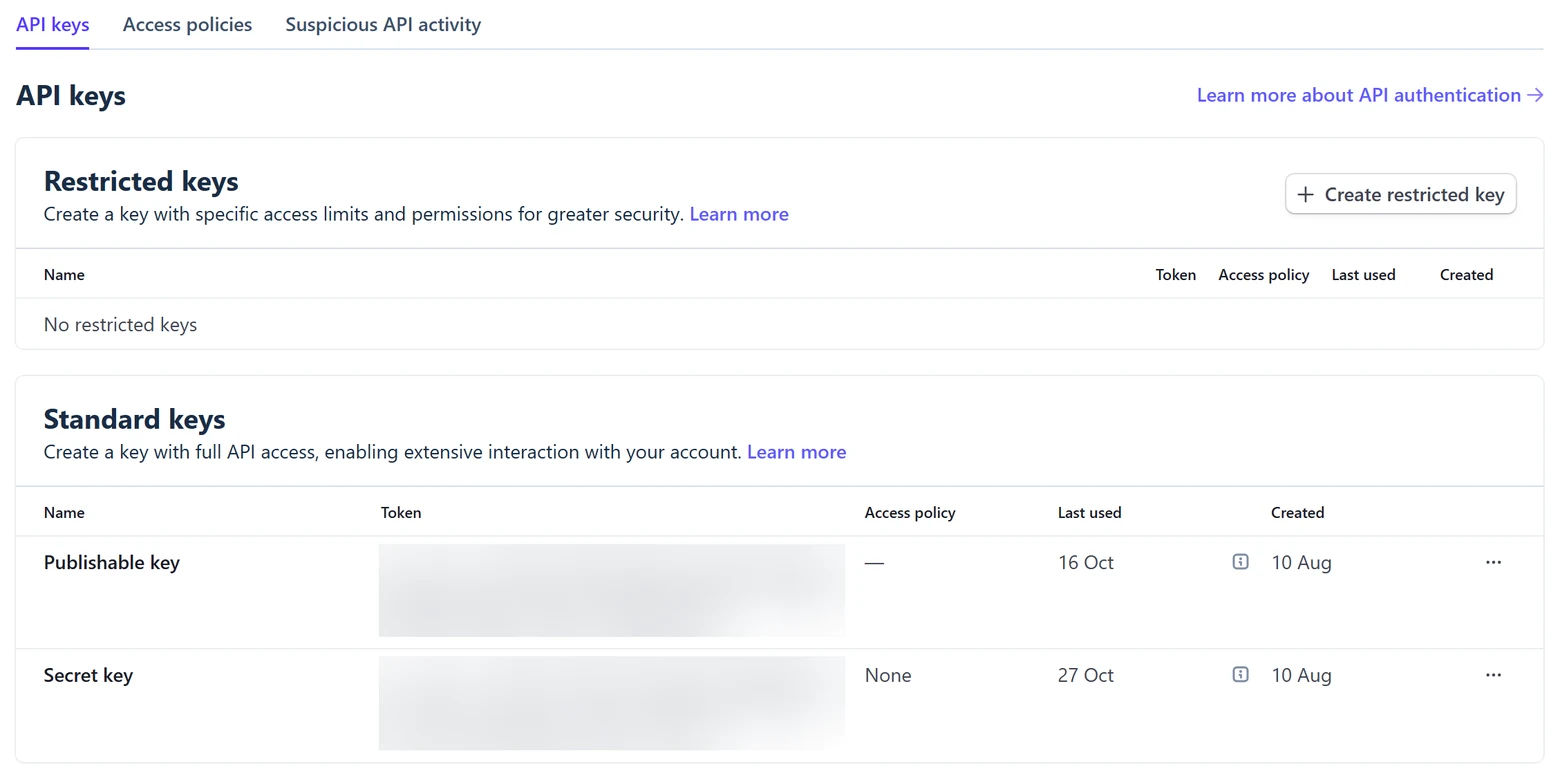
- In Stripe, open Developers → API keys, or go straight to dashboard.stripe.com/test/apikeys for test mode. Press + Create restricted key.
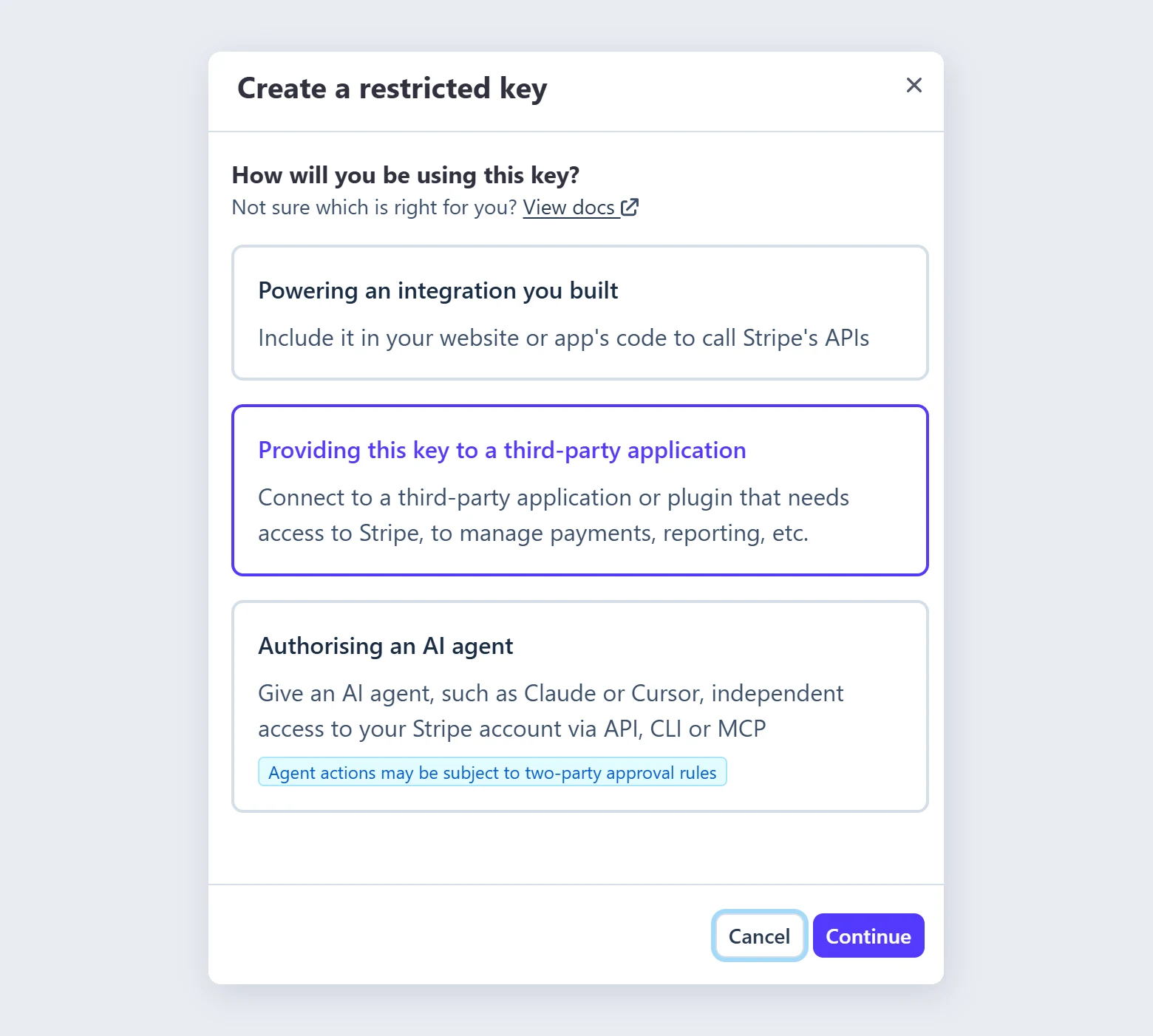
- Stripe asks how you will use the key. Choose Providing this key to a third-party application.
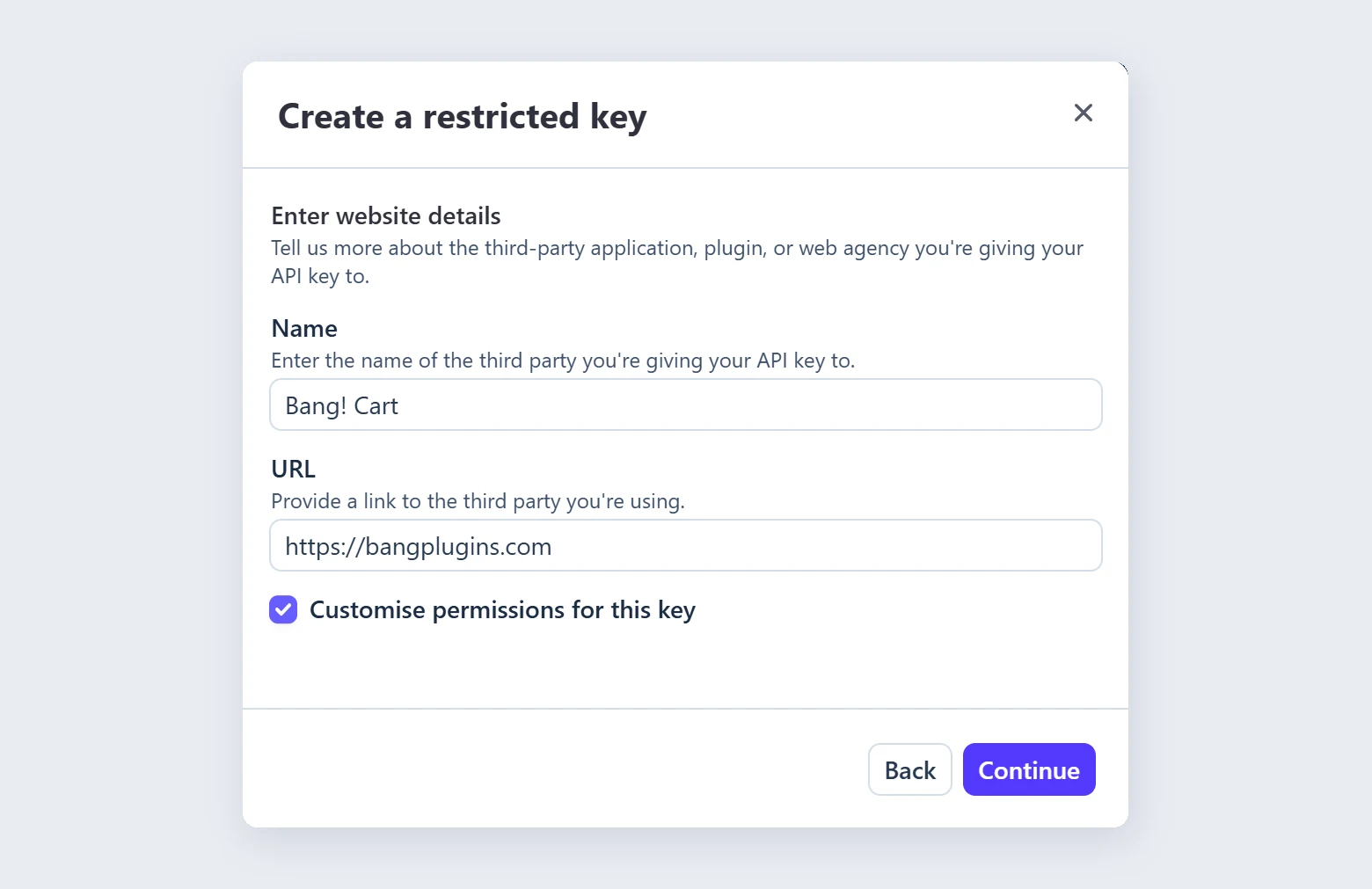
- For Name, enter Bang! Cart. For URL ("Provide a link to the third party you're using"), enter
https://bangplugins.com. Stripe uses these to label the key, so anyone looking at your account later can see what it belongs to. - Tick Customise permissions for this key and press Continue. On the next screen, set the permissions in the table below and leave everything else at None.
- Press Create key. Stripe may ask for a code from your phone.
- Copy the new key straight away. Stripe shows it once, and you cannot reveal it again after pressing Done. Paste it into the matching box on the Stripe tab and save.
The permissions to set
Stripe's list is long and grouped into sections, so these are spread out. Type each name into the Filter resources box above the list to jump straight to it. Choosing Write includes read access as well.
| Permission | Section | Set to | What the plugin uses it for |
|---|---|---|---|
| Checkout Sessions | Checkout Sessions | Write | Creating each customer's payment page, reading paid orders for the Orders tab and emails, and closing a payment page that has gone stale. |
| Coupons | Billing | Write | Discounts reach Stripe as a coupon. The plugin creates each one the first time an order needs it, and tidies away ones nobody has used for a while. |
| Customers | Core | Write | Verify connection now creates a temporary customer so Stripe sends a real event, then deletes it at once. |
| Webhook Endpoints, Event Destinations | Webhook Endpoints | Write | Set up webhook automatically, and Re-check only reading your webhook back. |
| Events | Core | Read | Confirming the verify event arrived, and warning you if real payments failed to reach your site. |
| Products | Core | Read | Syncing your products from Stripe. |
| Prices | Billing | Read | Reading the price of each synced product. |
| Shipping Rates | Core | Read | Showing the postage on orders and in emails. |
| Payment Intents | Core | Read | Payment details on an order's receipt. |
| Payment Methods | Core | Read | Showing how the customer paid, on the receipt. |
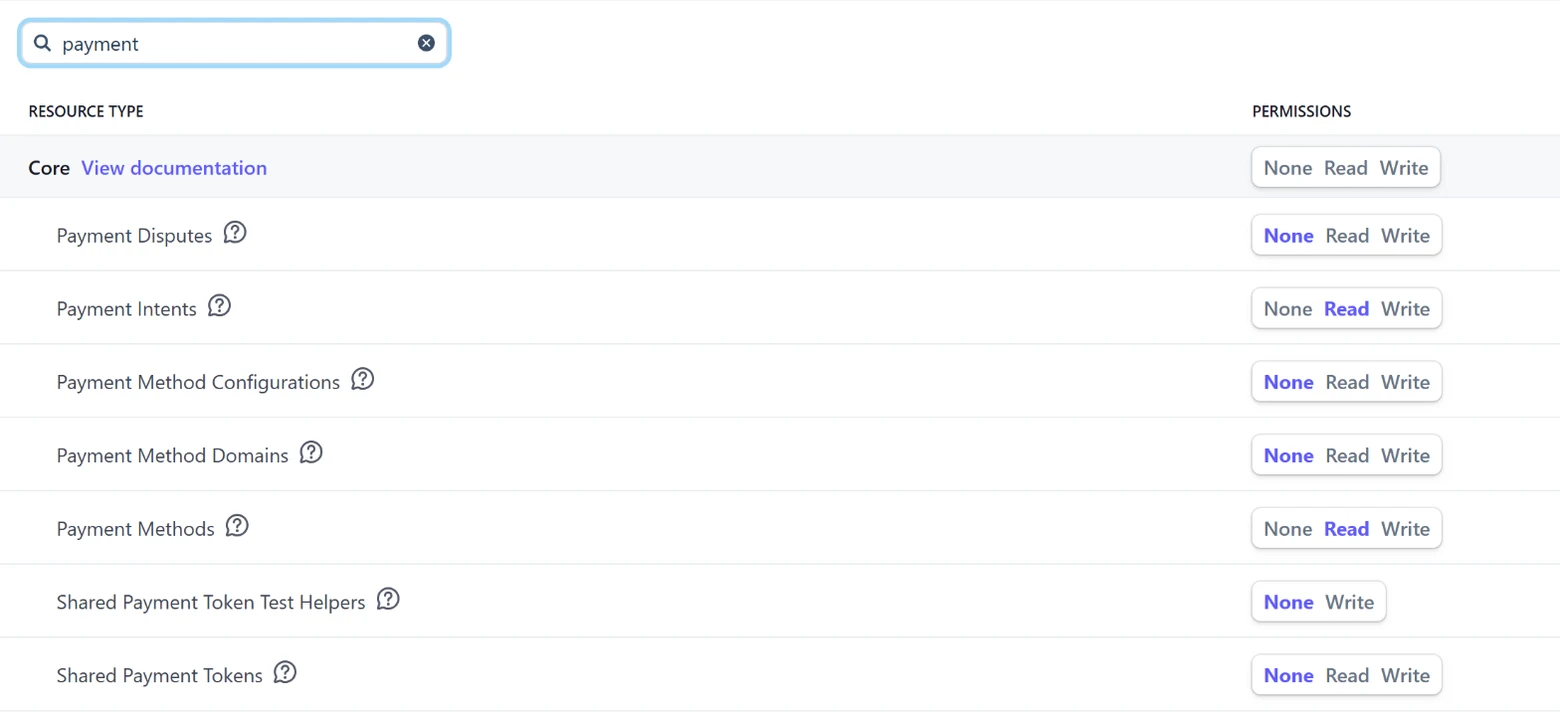
A row you cannot change? Each section has its own switch on its heading row, such as Billing. Once a section switch is set, every row inside it follows it and greys out. Set the heading back to None and the rows can be chosen one by one again. Setting a whole section to Write gives the key far more than Bang! Cart needs, so avoid it.
Bang! Cart Pro needs nothing extra. Pro talks to Stripe through the free plugin, so the same key and the same permissions cover both. The one addition is the publishable key if you run checkout on your own site, and that is a separate key Stripe already gives you on the API keys page.
Would rather not let the plugin manage webhooks? Set Webhook Endpoints, Event Destinations to Read instead of Write and build the webhook by hand, using the steps in the webhook. If you press the one-button setup anyway, the plugin says the key lacks access and points you to the manual route.
If a permission is missing
Nothing breaks quietly. When Stripe refuses a request, the plugin shows Stripe's own message, which names the permission it wanted. Go back to Developers → API keys, open the key's menu, choose Edit key, change that one setting and save. The key itself does not change, so there is nothing to paste again.
Already using your standard secret key?
It keeps working, and nothing breaks today, but Stripe no longer recommends it for plugins, so it is worth switching. Create a restricted key with the button above, paste it over the old key in the matching box on the Stripe tab, and save. Then press Verify connection now to prove it. Your webhook carries on as it was: its signing secret is separate from the key.
Your standard secret key stays exactly as it is in Stripe. If nothing else you run uses it, you can roll it from its ... menu on the API keys page so the old value stops working.
Next
With a key saved, set up the webhook. For what the rest of the Stripe tab does, see Connecting Stripe.
Still stuck?
Write to me and it is me who answers, not a ticket queue. Tell me what you expected and what happened instead.