Orders and order status
Your orders live in Stripe. This tab is a working view onto them, plus the one thing Stripe cannot know: which ones you have actually sent.
Where the list comes from
The Orders tab fetches your 25 most recent completed payments live from Stripe each time you open it, and caches them for 60 seconds so a page refresh is not another round trip.
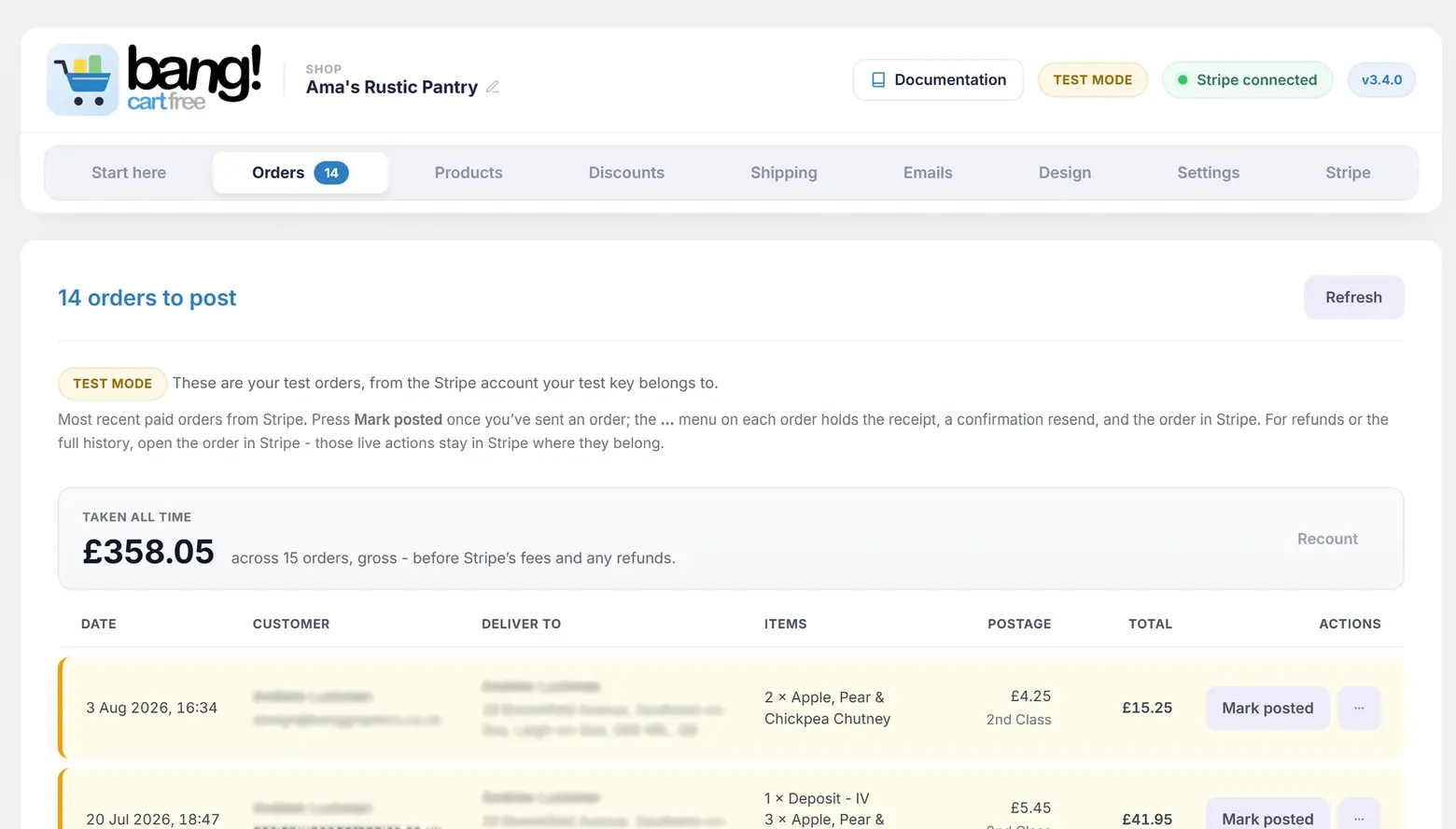
It follows whichever key is active. A test key shows test orders, a live key shows live ones, and the two are cached separately so switching modes never leaves test orders sitting under a live key.
What this site stores, and what it does not
The plugin creates no custom database tables. What it keeps locally is small and specific:
- Which orders you have marked as posted or collected. The newest 500.
- A ledger of which orders have already been emailed, so a Stripe retry cannot send a customer two confirmations. The newest 300.
- The last ten email send attempts.
- The last reason Stripe refused to start a checkout.
- Short-lived caches of the order list.
The order records themselves are Stripe's. One truth beats two.
Working through orders
The card heading counts what is waiting: 3 orders to go out, or All caught up. Unmarked orders sort to the top.
Each row has one button, which is the tab's whole job: Mark posted, or Mark collected on a collection order - the row knows which kind it is, and a collection row's Delivery column says Collection in person rather than showing an address. The button posts the state it wants rather than flipping whatever is there, so refreshing the page cannot quietly un-mark an order. An already-marked row's button un-marks it instead, for the day you press the wrong one.
Everything occasional sits behind a … menu, so the daily job is the only button left standing:
| Action | What it does |
|---|---|
| Resend confirmation | Rebuilds the buyer's confirmation from Stripe and sends it again. Asks you first, because a misclick mails a customer a duplicate. |
| Receipt | Downloads the plugin's PDF receipt for that order. |
| Open in Stripe | Opens the payment in your Stripe dashboard, in the right mode. |
The menu opens without JavaScript, which is why it works reliably. Script only adds the manners: one open at a time, close on an outside click or Escape.
The Receipt download works even when customers are not sent one. If your document setting is None, you can still pull a receipt for your own records.
Marking an order posted from your email
Your seller notification carries a Mark as shipped button, or Mark as collected for a collection order. Clicking it opens a small confirmation page, and only pressing the button there changes anything.
That extra step is not caution for its own sake. Outlook Safe Links, spam scanners and antivirus all pre-fetch links in emails. A one-click link that acted immediately would mark orders shipped the moment the email arrived.
Bang! Cart Pro: notes appear on the page you pack from. If your products or your basket ask the customer a question, the answers print on the Mark as shipped page you open while making the parcel up - which is the screen where you actually need to read them. Three of the same mug with three different names sit as three separate lines, all drawn from one stock count. See Order and product notes.
Last checkout failure
If Stripe ever refuses to start a checkout, the customer sees a plain apology and you get the actual reason, at the top of the Orders tab: Stripe's own error message, the parameter it objected to, and how long ago it happened.
It clears itself the next time a checkout succeeds. A 500 with no detail is the difference between a five minute fix and a lost afternoon.
The customer's order status page
Every confirmation email carries a Check order status button. No account, no password, nothing to type.
The link is signed with a secret held on your site, so it cannot be guessed or altered. There is deliberately no lookup form anywhere: an order reference plus a guessed email address is a weak secret and an enumeration tool, so the signed link is the only way in.
What it tells them
| Heading | When |
|---|---|
| Being prepared | You have not marked it yet. A collection order points the customer at the collection details, shown on the page. |
| On its way | You marked it posted. Shows the date you did. |
| Collected | You marked a collection order collected. Shows the date, the same way. |
| We cannot reach our payment provider | Stripe did not answer. The order is safe and the page says so, rather than implying it has gone missing. |
It shows the order reference, the items, the total paid, and how it is coming to them. It deliberately does not show their name or their full address. The link lives in an email indefinitely and may be forwarded, so it carries only what a stale link can safely reveal, with at most a short delivery hint like "Delivering to Cambridge" - the town, or failing that the outward half of a postcode, or just the country.
Refunds
Refunds happen in Stripe. There is no refund button in this plugin, and that is a decision rather than an omission: the money is Stripe's to move, and two places to refund from is one place too many.
Refund from your Stripe dashboard and Stripe emails the buyer automatically, provided Refunds is ticked under Settings, Business, Customer emails. The plugin creates a Stripe customer record on every order specifically because Stripe requires one before it will send that email.
Still stuck?
Write to me and it is me who answers, not a ticket queue. Tell me what you expected and what happened instead.