Products and stock
There are two ways to add a product and you can mix them freely. The right one depends on whether you care about seeing sales broken down by product inside Stripe.
Everything on this page lives on the Products tab.
The two kinds of product
| Where you add it | What you get |
|---|---|
| In Stripe, then Sync | Best for tracking. Create the product in Stripe, press Sync from Stripe, and every sale counts against that product in Stripe's own reports. Name, description and photo come from Stripe and refresh on each Sync. |
| Here, in the plugin | Quickest. Add it on the Products tab and start selling. Stripe still takes the payment, but it sees a one-off line rather than a catalogue product, so it cannot group sales by product. |
The price shown on this tab is what customers are charged, in both cases, so your sales and discount codes apply to either kind.
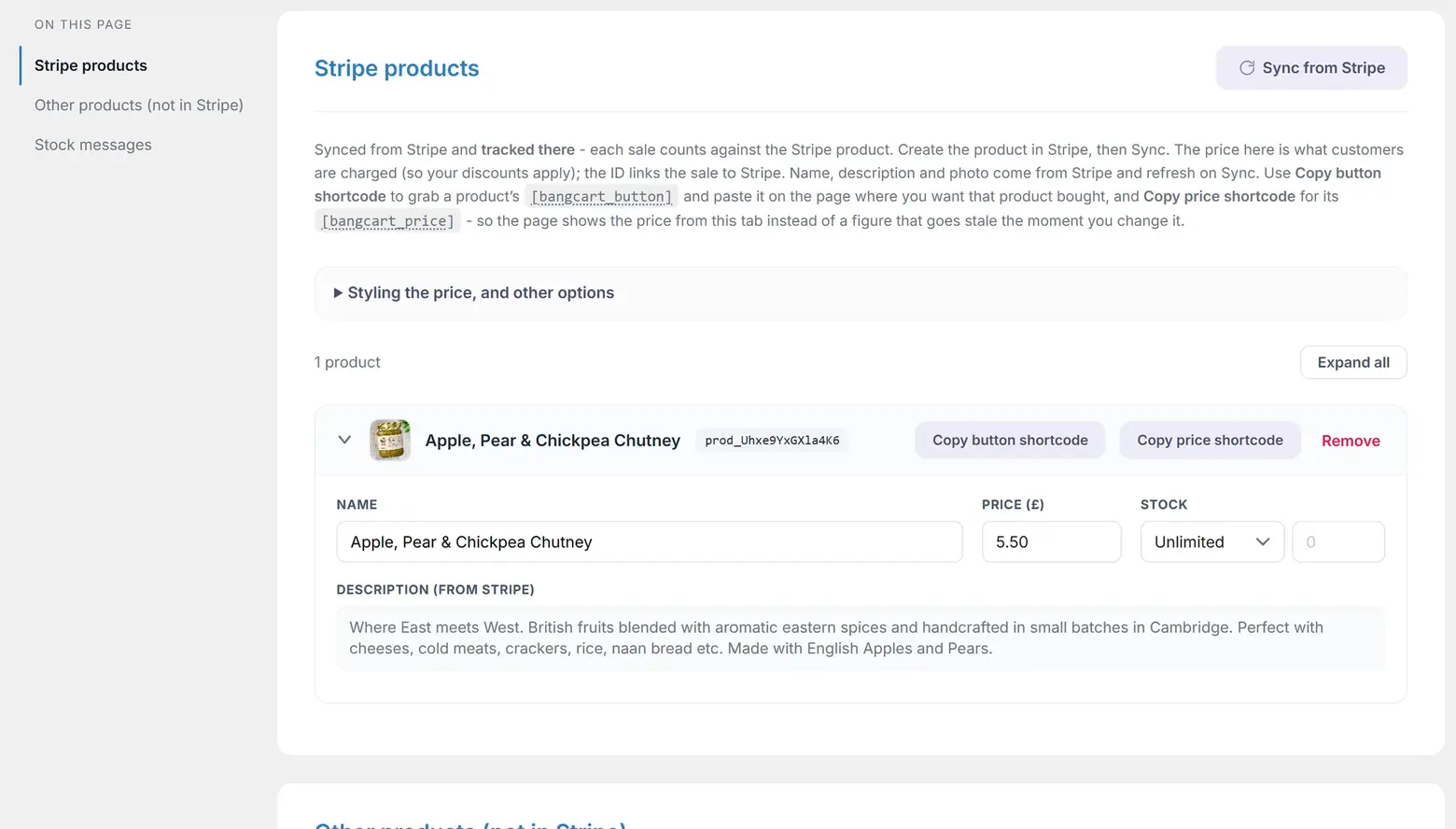
Syncing from Stripe
Sync from Stripe reads your active products and their default prices. It pages through them, up to 1,000 products, so a large catalogue does not quietly stop at the first hundred.
Four things cause a Stripe product to be skipped: it has no default price, its price is not a simple amount (zero, tiered and metered prices all count), its currency is different from your shop currency, or it is a recurring subscription price. This plugin does not do subscriptions.
Products you added in the plugin are kept when you Sync. Only the Stripe half of the list is rebuilt.
Deleting a synced product here does not delete it in Stripe. Removing it takes out this plugin's local row only, and the next Sync brings it straight back, at Stripe's price and with its stock settings reset. To remove it properly, archive it in your Stripe dashboard.
Getting a product onto a page
Each product carries two copy buttons.
- Copy button shortcode gives you
[bangcart_button id="..."]. Paste it into the page where you want that product bought. - Copy price shortcode gives you
[bangcart_price id="..."]. Paste it where you want the price shown, so the page reads its figure from this tab rather than from a number you typed once and will forget to update.
Both are covered in full in the Shortcode reference.
Asking the customer a question
Tick Ask for a note on a product and word the question yourself - "Name to engrave", "Which invoice is this for?", "Any allergies?" - and a box appears with the buy button. You can insist on an answer, in which case the product cannot be added to the basket without one.
Bang! Cart Pro. Asking for a note is a Pro feature, as are product variants - one product in several sizes and colours, each with its own price and stock. Both are set up on this tab, inside the product card you already know. Free keeps everything else here. See Order and product notes and What Bang! Cart Pro adds.
Updating from a version before 3.6.0? Check your stock figures once. A bug fixed in 3.6.0 could write a stock count against the wrong product: a product set to Unlimited stopped the browser sending its box at all, so every product below it took the count belonging to the one above, and the tab redrew showing the wrong figures as though you had typed them. Only shops with an unlimited product above a limited one were affected. The fix stops it happening again, but it cannot know what the numbers should have been - a count that has drifted needs typing in once.
Duplicate
Products you added yourself carry a Duplicate button. It clones the whole card, including price, stock, description and photo, gives it a fresh id ending -copy and a name beginning "Copy of", and opens it ready to edit.
It is the quickest way to build a family of related products in the free plugin: one recipe in three sizes is one product duplicated twice, rather than three products typed from scratch. Nothing is stored until you save, so a misclick is undone with Discard.
If you would rather sell that recipe as one product the customer picks a size from, that is Product variants, in Bang! Cart Pro.
Stock
Stripe has no inventory. Its catalogue covers pricing and billing, not what is on your shelf. So stock counts live in WordPress, keyed by product id, and they survive a re-sync from Stripe.
Each product is either Unlimited or Limited with a number. Unlimited products never show either stock message.
What the customer sees
- At or below your low-stock threshold, a quiet line appears under the button reading Only 3 left.
- At zero, the Add to basket button greys out, cannot be clicked, and reads whatever you set as the sold-out label.
What is already in the basket counts. With three in stock and three already in someone's basket, the button reads sold out for them. That is the correct behaviour, and it is worth knowing before you conclude the count is wrong.
The Stock messages card
At the foot of the Products tab, not on Design or Settings. It has two controls:
| Setting | What it does |
|---|---|
| When stock reaches zero, the button says | The sold-out button label. Defaults to "Sold out". Write your own if you would rather say "Back soon". |
| Warn when this many are left | The low-stock threshold, 0 to 99, default 5. Set it to 0 to never show the warning. |
The wording of the low-stock line itself is fixed at "Only 3 left". The threshold is yours; that sentence is not.
Two people, one last item
Stock is decremented when payment succeeds, in the webhook, never in the browser. That means an abandoned basket never eats stock.
It leaves one gap, which the plugin closes with a reservation. When a customer reaches checkout, the units they are buying are reserved behind a database lock before Stripe is contacted. A second customer trying for the last item in the same moment is told, plainly, "Sorry, someone just took the last of one of your items. Please lower the quantity and try again."
The reservation is released when payment lands. If the customer wanders off, it expires by itself after thirty minutes, so a flaky webhook can never strand your stock. A delayed bank payment holds its reservation for longer, because those take days to clear and the stock should not be sold twice in the meantime.
If stock never goes down, your webhook is not connected. Nothing else in the plugin decrements stock. See The webhook.
Still stuck?
Write to me and it is me who answers, not a ticket queue. Tell me what you expected and what happened instead.