Reports
How the shop is doing, from what actually happened through Bang! Cart: what came in, what sold, what discounts cost you and what went back.
A Bang! Cart Pro feature, from Pro 1.4.0. It needs free 3.9.0 or newer.
Where to find it
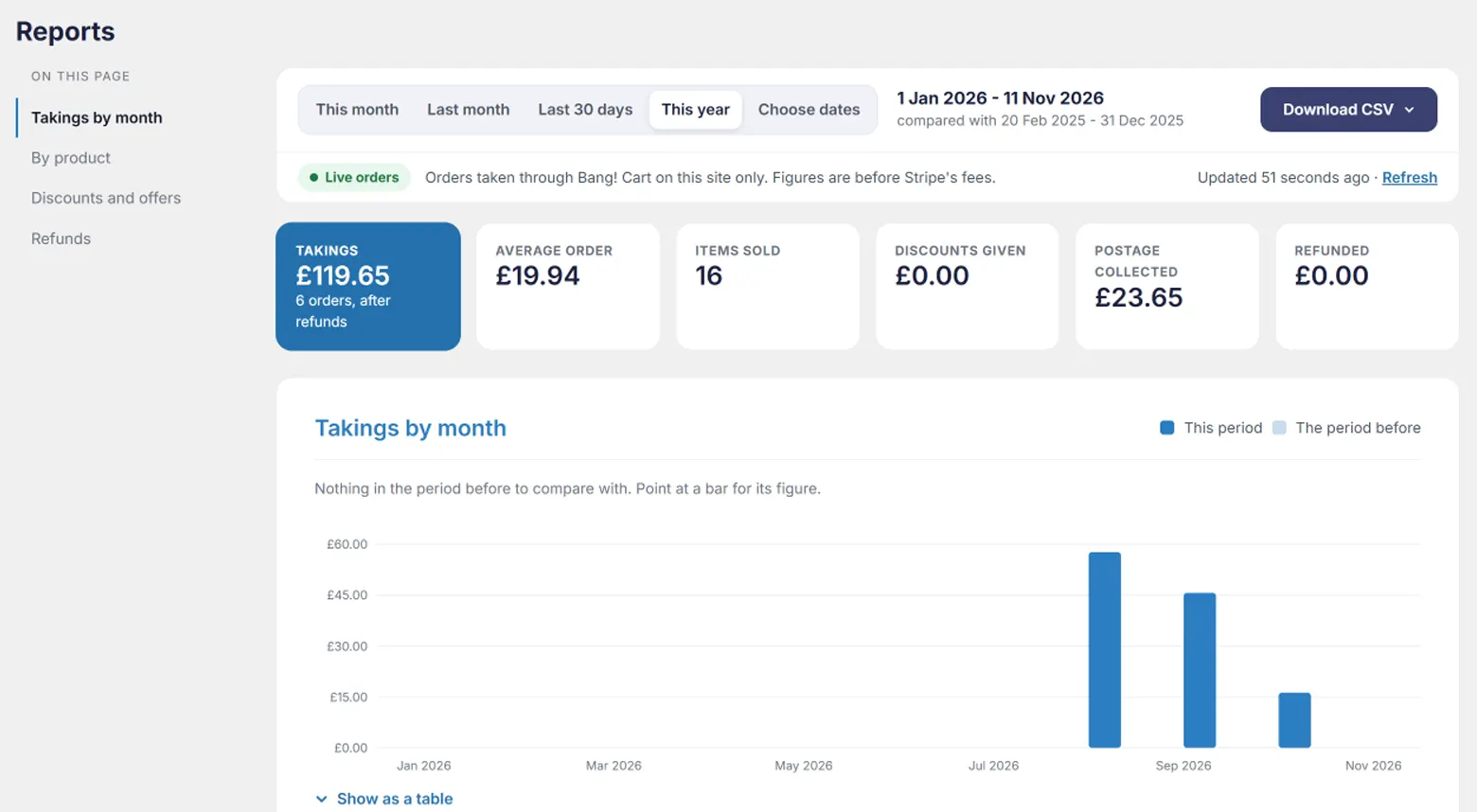
Reports sits under Bang! Cart in the WordPress sidebar, between Products and Settings. It opens on last month. Pick This month, Last month, Last 30 days or This year along the top, or Choose dates for any range. Dates follow your site's time zone, set in WordPress under Settings, General.
What counts
Only orders taken through Bang! Cart on this site. If your Stripe account also takes payments from a payment link, an invoice, another plugin or another website, none of those appear here - the same rule as the Orders page, so the two never disagree.
- Test or live, as you are. In test mode Reports shows test orders; switch to your live key and it shows live ones. The two are kept apart.
- Before Stripe's fees. Takings are what customers paid. Your Stripe dashboard has the fees and payouts.
- Refunds are taken off. A refund made in Stripe comes off the order it belongs to, in the figures and the chart.
The figures
| Figure | What it is |
|---|---|
| Takings | What customers paid in these dates, after refunds, with the number of orders. |
| Average order | Takings divided by orders. |
| Items sold | Units sold. Free gifts are counted separately underneath. |
| Discounts given | Money taken off by quantity discounts, order value discounts, sales and codes. A free gift is not money off, so it is not in here. |
| Postage collected | What customers paid for delivery. |
| Refunded | Refunds on orders in these dates, and how many orders they were on. |
The chart
Takings by day for a month or so, by week for a few months, by month for longer. The period before sits beside each bar in a paler blue, so last month is set against the month before it, and a line above says whether you are up or down on it. Point at a bar for its figure, or open Show as a table to read every one.
By product
Every product sold in these dates, the best-selling first, with its units, its takings after discounts and its share of all takings. A product sold in sizes or colours opens out into each one, so you can see the small red T-shirt sells and the large green does not. Downloads and customer-set prices are labelled, and a product given away as a free gift shows how many went free.
Under the table, one line shows how it adds up: goods, plus postage, plus extras such as gift wrapping, less refunds, is your takings.
Discounts and offers
Each discount used in these dates - quantity discount, order value discount, shop-wide sale, each code by name, and free gifts given instead of money off - with how many orders it applied to and what it took off.
Refunds
Each refund on an order in these dates: when it was made, who to, and how much - all of the order, or part of it.
Refunds are recorded from the day Reports first runs. Stripe lets the plugin look back 30 days for refunds, so one made longer ago than that, before you first opened Reports, is not shown. Your Stripe dashboard has every refund.
CSV downloads
The Download CSV menu at the top of the page offers two files for the dates you are looking at, ready for a spreadsheet or your accountant:
- Products CSV - each product, then each of its sizes and colours, with units, takings, share and how many were given free.
- Orders CSV - one row for every item in every order: date, order, customer, email, country, product, option, quantity, price each and line total. The order's discount, postage, total and refund are on its first row only, so adding up a column never counts an order twice.
Amounts are plain numbers in your currency, and the file opens with the right characters in Excel.
The first visit
Reports keeps a small record of your orders on your site, so it does not ask Stripe for your whole history every time. The first time you open it, it starts reading that history - newest first - and carries on in the background. A blue line says how many orders it has read so far, and the figures fill in as it goes; Read more hurries it along. After that only new orders are fetched, at most every ten minutes, and Refresh asks Stripe straight away.
Removing Bang! Cart Pro deletes that record, customers' names and email addresses included.
If a figure looks wrong
- An order is missing. It may not have been taken through Bang! Cart - a payment link or an invoice is left out on purpose. If your shop moved to a new domain, orders taken on the old address are left out too. A bank payment still clearing is not counted until it lands; Reports asks Stripe about it again on each visit for up to ten days.
- Wrong mode. Check the chip under the date controls says Live orders (green) rather than Test orders (amber) when you expect real ones.
- A product shows an old name. Orders before 3.9.0 recorded the name Stripe was given at the time. Newer orders follow the product as it is now.
- Stripe could not be read. A red line says why - usually the Stripe key. The figures already read stay.
Still stuck?
Write to me and it is me who answers, not a ticket queue. Tell me what you expected and what happened instead.