Connecting Stripe
One secret key, pasted into the Stripe tab. The plugin holds a test key and a live key at the same time and lets you switch between them, so trying things out never means unpicking your real shop.
Stripe is what takes the money. This plugin is the shopfront in front of it. You will need a Stripe account, which is free to create, and you can take test payments straight away while Stripe finishes checking your details for live ones.
Getting your key
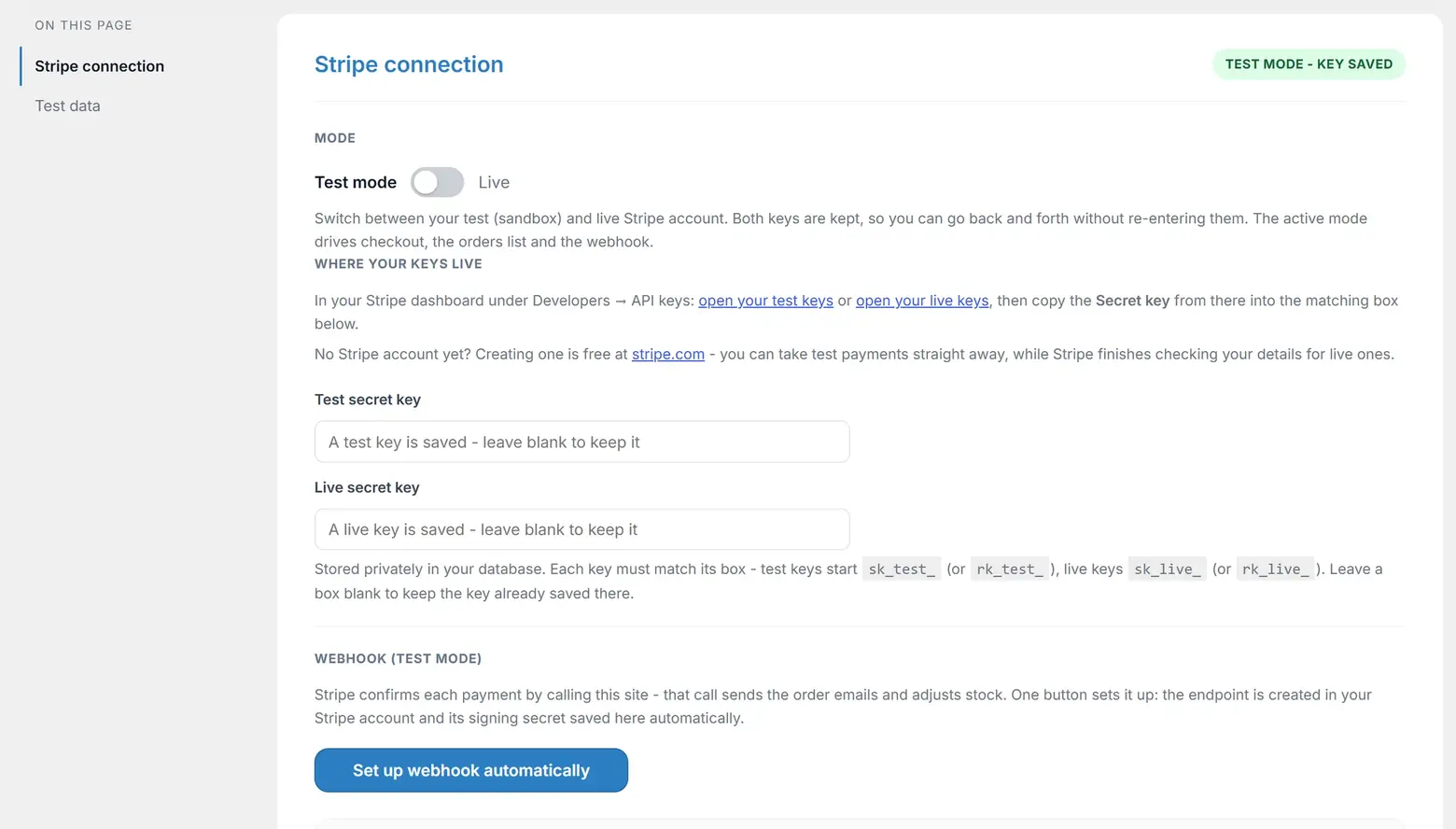
- In your Stripe dashboard, open Developers → API keys. The Stripe tab in the plugin links you straight there, to both the test page and the live page.
- Copy the Secret key. Not the publishable key: these boxes want the secret one. The publishable key has boxes of its own, and they only appear if you run checkout on your own site.
- Paste it into the matching box on the Stripe tab and save.
Each key must match its box. Test keys begin sk_test_ or rk_test_, live keys begin sk_live_ or rk_live_. Anything else - the other mode's key, a publishable key, a truncated paste - is refused by these boxes with a message saying so, and the key already saved stays untouched.
Bang! Cart Pro: the publishable key has a job too. Pro can put Stripe's payment form in a page of your own site instead of sending customers to Stripe's. Switch that on and two more boxes appear beneath these ones, for your test and live publishable keys - the key Stripe designs to be seen in a browser, which is why it issues two. The free plugin never needs it. See Checkout on your own site.
Both keys are kept. Saving a live key does not erase your test key. You can move between test and live as often as you like without re-entering anything, and each mode remembers its own webhook signing secret too.
Test mode and live mode
The Mode switch at the top of the card decides which key is in use. Whichever mode is active drives everything: the checkout your customers reach, the orders list you see, and which webhook fires.
Test mode behaves exactly like live mode. You can add products, build a basket, pay with one of Stripe's test cards, and watch the confirmation emails arrive. Nothing is charged and nothing is real, which is precisely what makes it worth doing before you open.
Leave a key box blank when saving and the key already stored there is kept. That is how you change one mode without disturbing the other.
Where the key is stored
Privately, in your WordPress database, and it is never printed back into the page. Once a key is saved the box shows a placeholder rather than the key itself.
The API secret key can only be set here, on the Stripe tab. There is no wp-config.php constant for it.
The webhook signing secret is different: it can be set by constant if you would rather keep it out of the database, using BANGCART_STRIPE_WEBHOOK_SECRET. The pre-rename name SSC_STRIPE_WEBHOOK_SECRET is still honoured, so an older site that used it keeps working. One caveat worth knowing: the constant is a single value and applies only to whichever mode is currently active. The other mode falls back to the secret saved in the plugin.
Which currency
Set your currency on the Settings tab, under Shop basics. There are 44 to choose from, and the symbol customers see is yours to edit.
Two things follow from that choice. Stripe must be set to the same currency, because prices are not converted anywhere: a product entered as 5.50 is charged as 5.50 in your currency. And when you sync products from Stripe, anything priced in a different currency is skipped.
Currencies without decimal places, such as the Japanese Yen, are not offered. Every amount in this plugin is held in hundredths, so a whole-unit currency would need different arithmetic throughout. Every currency in the list has been checked against Stripe's own tables, and the plugin double-checks before creating each payment: if the saved currency is ever one it cannot charge in accurately, checkout pauses and a notice across your admin says so, rather than risking a charge for the wrong amount.
Three currencies were removed in 3.5.1 for exactly that reason: Chilean Peso (a whole-unit currency at Stripe), Croatian Kuna (retired when Croatia adopted the Euro - Croatian shops should charge in Euros), and Icelandic Krona (Stripe will not accept fractions of a krona). If your shop had one of them saved, you will see the notice above until you pick another currency on the Settings tab.
Checking it worked
The Stripe tab carries a connection status box and two buttons. Re-check only reads your webhook endpoints back from Stripe and reports what it finds. Verify connection now goes further: it asks Stripe to generate a real event, then confirms that this site received it and that its signature checked out against your saved secret.
That second one is the honest test, and it costs nothing. It creates a temporary Stripe customer purely so an event exists, then deletes it immediately. It works in live mode without taking a payment.
Next
With a key saved, set up the webhook. It is the piece that tells your site a payment happened, and nothing else does that job.
Still stuck?
Write to me and it is me who answers, not a ticket queue. Tell me what you expected and what happened instead.