What the invited person sees
The whole experience from the other end: one email, one click, four fields, and they are in. This page also lists every message that appears in place of the form, so you can recognise the one somebody is describing to you on the phone.
The link
The email carries a button, and beneath it the same link in plain text for anyone whose email client hides buttons. Both point at your registration page with the invited address and the invitation code attached.
Nothing sensitive travels in that link. The role, the expiry and the sender are all stored on your server against the code, and are read from there. Editing the address in the URL does not change who the invitation is for; it simply stops matching, and the link fails.
The form
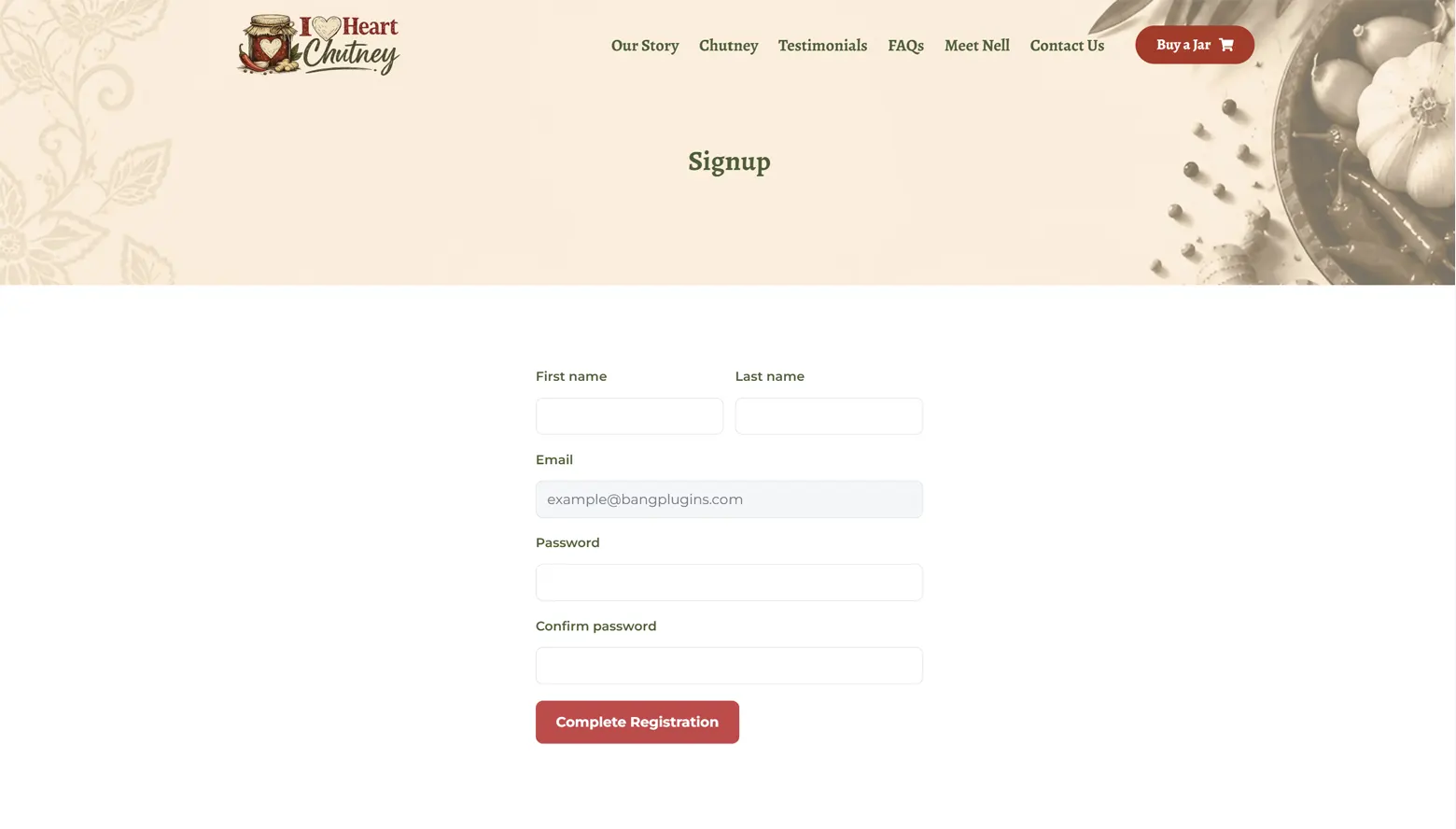
Five fields, one of which is filled in and locked:
| Field | Notes |
|---|---|
| First name and Last name | Both required. Side by side on a wide screen, stacked below 420px. |
| Pre-filled from the invitation and read-only. The account is created with the invited address whatever the browser sends back, so it cannot be swapped. | |
| Password and Confirm password | At least 8 characters, and the two must match. Passwords are never altered on the way through, so any character you can type is safe to use. |
If anything fails, the page comes back with the problems listed at the top and the names still filled in, so only the passwords need retyping.
The username they get
People are not asked to choose one. The plugin builds a tidy username from the name they just gave: Jane Bell becomes jane.bell, and if that is taken, jane.bell2, then jane.bell3. Accents and punctuation are stripped. If the name yields nothing usable it falls back to the part of the email address before the @, and failing that to client.
Their display name is set to their full name, so the site greets them properly rather than by a login handle. They can sign in with either the username or their email address, as WordPress allows both.
What happens the moment they submit
- The account is created with the invited email address and the role stored on the invitation. The role is checked again at this exact moment, so an invitation that has been tampered with, or a role that has gained capabilities since the invitation was sent, falls back safely to your default role.
- Their first name, last name and display name are saved.
- The invitation is marked accepted. The link is now dead and cannot be used again.
- The welcome email goes out, and your team notification with it if you have set one.
- If Log people in automatically is on, which it is by default, they are signed in.
- They are sent to your chosen destination.
All of this runs before the page renders. Creating the account, setting the login cookie and redirecting all need to send headers, which is impossible once a theme or page builder has started printing. Handling the submission early removes an entire class of conflict; Elementor's image-loading module was the case that prompted it.
Where they land
Where to send people the first time, right after they register on the Settings tab takes the WordPress dashboard, any page on your site, or a custom URL, including one on another domain.
This fires once, immediately after registration. It is not a login redirect. Where clients go on every later sign-in is a matter for your theme or membership plugin, not this one.
The messages that appear instead of the form
All four share one branded box, tinted from your registration button colour, and three of them carry a button.
| When | What they see |
|---|---|
| The link has already been used | You have already signed up - this invitation has been used. Please log in to your account instead. With a Log in button pointing at your chosen login page. |
| The invitation is still pending, but an account already exists for that address | You have already signed up - an account already exists for this email address. Please log in instead. This covers somebody who registered another way, or whom you added by hand, in the meantime. |
| The link is expired, malformed, or for an invitation you deleted | This invitation link is invalid or has expired. Please ask for a new one. No button, because there is nothing useful to point at. Issue them a new link from the Tracking tab. |
| They are already logged in | You are already registered and logged in. With a Go to your client area button pointing at the same destination people reach after registering. |
Seeing the form on a link that has already been used means a cache is serving an old copy of the page. It is not a fault in the link, and the link itself is still dead: submitting the form would fail. The registration page explains how to exclude the page from your host's cache.
Making it look like your site
The form is deliberately plain so it inherits your theme's typography, and the parts that are not inherited follow one colour you choose. Under Settings > Registration form:
| Setting | What it does |
|---|---|
| Button colour | The submit button's background. Hover is the same colour, slightly darkened, worked out for you. |
| Button text | The colour of the label on the button. |
| Button label | Blank gives Complete Registration. |
| Button position | Left, Centre, Right or Full width. |
| Corner radius | 0 to 60 pixels. 0 gives square corners. |
Button colour does more work than its name suggests. The focus ring and glow on each field are drawn from it, and so is the tint on all four notices above and on the invitation-only page notice. Setting it to your brand colour brings the whole registration surface into line in one move.
The form sits in a 420px column, which is a comfortable width for five short fields and stops it stretching across a wide page. Put it inside a narrower container if you want it narrower.
Next
Tracking invitations is the other side of this: who has accepted, who has not, and what to do about it.
Still stuck?
Write to me and it is me who answers, not a ticket queue. Tell me what you expected and what happened instead.