Getting started
Three things stand between a fresh install and your first invitation going out: a page, a setting, and an email address. This page covers the install, the layout of the admin screen, and what the plugin is for, so the other twelve articles make sense.
Install Bang! Invites from the WordPress plugin directory and activate it. Its full listing name is Bang! Invites - Invite People to Register by Email, and searching for Bang! Invites in Plugins > Add New finds it. You can also install it from its page on WordPress.org.
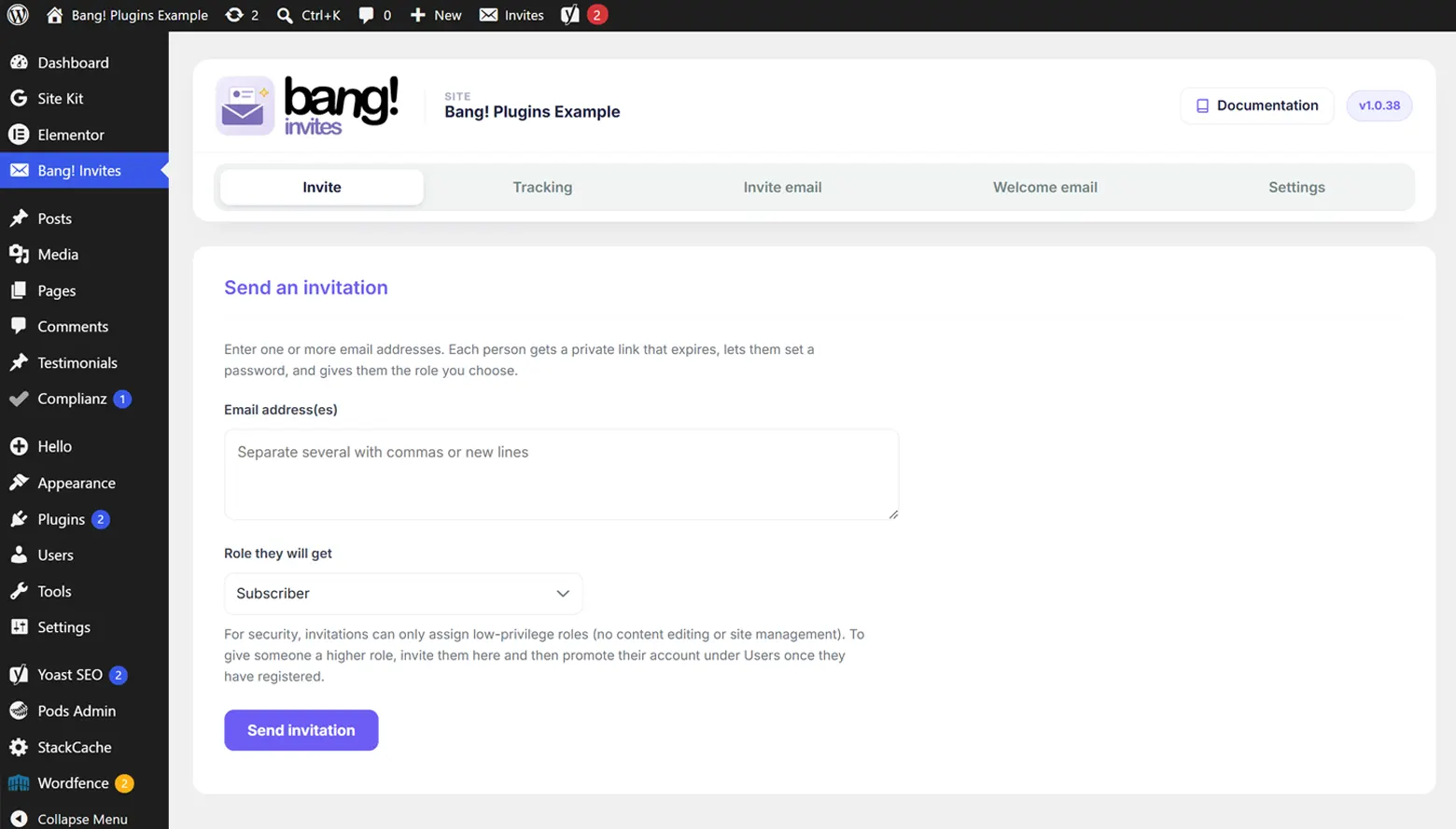
It needs WordPress 6.0 or newer and PHP 7.4 or newer. A Bang! Invites item appears near the top of your admin menu, just below Dashboard, and opens on the Invite tab.
What this plugin is, before you start
Bang! Invites does not open registration. It is the opposite: it keeps registration closed and hands out one private key at a time.
You enter someone's email address. They receive a link that works once, expires on a date you set, and gives them exactly the role you chose when you sent it. They set a password, and they are in. Nobody else can use that link, and nobody who was not invited can register at all.
The role is decided by you, on the server, at the moment you send. It is never read from the link or from anything the visitor can edit. That is the difference between an invitation and an open sign-up form with a secret URL.
The five tabs
| Tab | What it is for |
|---|---|
| Invite | Type one or more email addresses, pick the role, send. This is where the plugin opens. See Sending invitations. |
| Tracking | Every invitation you have sent, marked Pending, Accepted or Expired, with resend, new link, copy link and delete. See Tracking invitations. |
| Invite email | The email that carries the link: subject, message, tokens, the button, and who it comes from. See The invitation email. |
| Welcome email | A second, different email, sent once someone has finished registering, plus the alert to your own team. See The welcome email. |
| Settings | The registration page, the default role, how long links last, where people go afterwards, and the form's appearance. See Settings reference. |
Every screen with more than one section carries an On this page index down the side that follows you as you scroll and jumps to any section when clicked. Below a narrow width it becomes a row of pills above the content.
Setting up
Three steps. The Invite tab tells you if you have missed one, and will not let you send blind.
- Create the page people will register on. Any page will do. Put the shortcode
[banginvites_form]on it and publish. See The registration page. - Point the plugin at that page. On the Settings tab, choose it under Registration page. Invitation links are built from this, so nothing works until it is set. While you are there, set the default role and how many days a link should last.
- Send your first invitation. On the Invite tab, enter an address and press Send invitation. Send one to yourself first, on an address that has no account on the site. See Sending invitations.
Test on an address that has no account yet. The plugin refuses to invite an email address that already belongs to a user, and says so rather than sending a link that could not work. Your own admin address is the one address that is guaranteed to fail.
The toolbar shortcut
A Bang! Invites item appears in the WordPress toolbar at the top of every screen, front end and admin, with a live count of invitations still pending. Its submenu jumps straight to Send an invitation, Tracking or Settings. Turn it off under Settings > Behaviour if you would rather not have it.
Who can use it
The admin screen requires the promote_users capability, which in a standard WordPress install means administrators. It is the same permission WordPress itself requires to change somebody's role, which is the right bar: sending an invitation is choosing a role for a future user.
What it deliberately does not do
These are decisions rather than gaps.
- No open registration, no public sign-up form, no CAPTCHA. There is nothing to protect against bots, because there is no form a bot can reach without a valid link.
- No high-privilege invitations. An invitation can never grant a role that edits content or manages the site. See Roles and security.
- No custom fields on the registration form. It asks for a first name, a last name and a password, and that is all.
- No import from a spreadsheet. You can paste a long list of addresses into the Invite tab, which covers most of the same ground.
- No Pro version. The plugin is complete and free.
It also creates no custom database tables. Settings and invitation records live in WordPress options, which is why deleting the plugin can clean up after itself completely.
Next
The registration page is step one, and it takes about two minutes.
Still stuck?
Write to me and it is me who answers, not a ticket queue. Tell me what you expected and what happened instead.