Settings reference
Every setting on the Settings tab, in the order you meet it, with its default. Use this page to find where something lives; the linked articles explain what it is for.
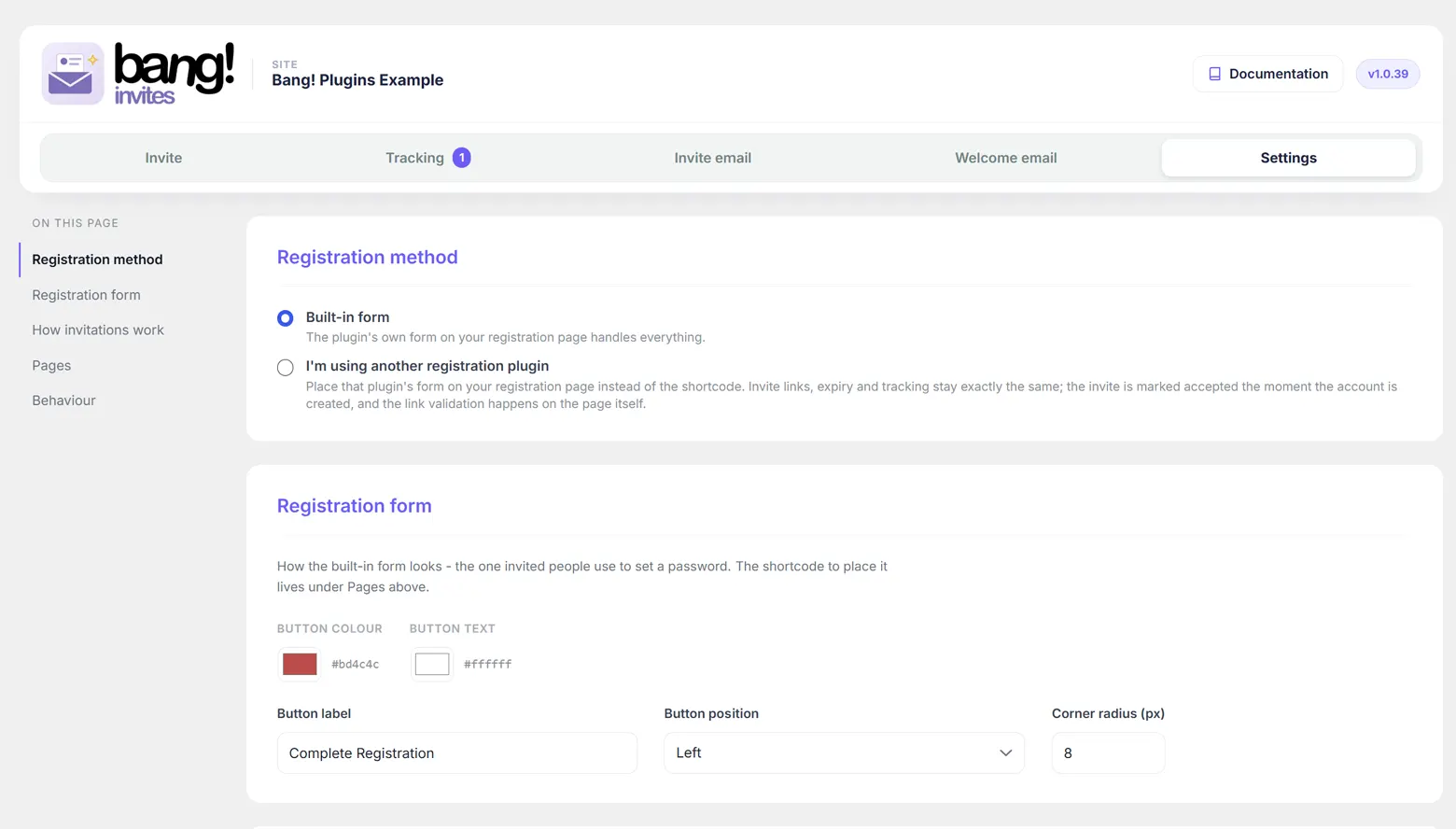
The cards follow the order you set the plugin up in: how registration happens, what the form looks like, how invitations behave, which pages are involved, and finally the odds and ends. Changes are saved with the floating Save settings bar that appears as soon as you alter anything.
Registration method
| Setting | Default | What it does |
|---|---|---|
| Built-in form | Selected | The plugin's own [banginvites_form] shortcode handles registration. |
| I'm using another registration plugin | - | Another plugin's form sits on the registration page instead. Invitations, expiry and tracking are unchanged. See Using another registration plugin. |
Registration form
How the built-in form looks. Greyed out, but not hidden or reset, while the other registration method is selected. Explained in full in What the invited person sees.
| Setting | Default | What it does |
|---|---|---|
| Button colour | #6d5ef5 | The submit button's background, and the tint used for field focus rings and every front-end notice. |
| Button text | #ffffff | The colour of the label on the button. |
| Button label | Complete Registration | The words on the button. |
| Button position | Left | Left, Centre, Right or Full width. |
| Corner radius | 8px | 0 to 60. Zero gives square corners. |
How invitations work
| Setting | Default | What it does |
|---|---|---|
| Default role for new users | Subscriber | Pre-selected on the Invite tab, and the safe fallback whenever a stored role can no longer be applied. Only low-privilege roles appear. See Roles and security. |
| Invite expires after (days) | 14 | 1 to 365. Applies to invitations sent from now on; ones already out keep the date they were sent with. |
Pages
| Setting | Default | What it does |
|---|---|---|
| Registration page | None | The page holding the form. Invitation links are built from it, so nothing works until it is set. See The registration page. |
| Protect this page - invitation only | On | Visitors without a valid invitation see a notice instead of the page. You and your editors always see the real page. |
| Invitation-only notice | A standard sentence | The wording shown in place of the page. |
| Where to send people the first time, right after they register | The WordPress dashboard | The dashboard, any page on your site, or a custom URL, including one on another domain. Fires once, right after registration. It is not a login redirect. |
| Custom URL | Blank | Used only when A custom URL is chosen above. |
| Where clients log in | The standard WordPress login page | Where the welcome email's Log in button and {login_url} point, and where the "you have already signed up" notices send people. |
| Custom login URL | Blank | Used only when A custom URL is chosen above. |
A custom destination on another domain really does work. WordPress normally refuses to redirect off-site, which would silently drop people at the dashboard instead. The plugin adds your own saved destination to the list of allowed hosts, and only that one.
Behaviour
| Setting | Default | What it does |
|---|---|---|
| Log people in automatically once they finish registering | On | Signs the new account in and takes them straight to your chosen destination. Off means they land there logged out and have to sign in. |
| Silence WordPress's own account emails (send only mine) | On | Suppresses the new-account email WordPress sends by itself, so only your welcome email arrives. |
| Show a shortcut in the top WordPress toolbar | On | Adds the Bang! Invites item, with a live pending count, to the toolbar on every screen. |
Settings that live elsewhere
| Setting | Where |
|---|---|
| Invitation subject, message, tokens and button | The Invite email tab. See The invitation email. |
| From name, From email and Reply-to | The Invite email tab. Both emails use them. |
| Welcome email, its tokens, and the team notification | The Welcome email tab. See The welcome email. |
| The role a particular invitation grants | Chosen per send on the Invite tab. |
What is stored, and what is removed
The plugin creates no custom database tables. Everything lives in WordPress options: one for your settings and one for the invitation records.
Deleting the plugin from the Plugins screen removes both, along with the older option names it migrated from on sites upgrading from the original theme-based version. Deleting is a deliberate "remove everything" action, so invitation records go with it. Deactivating changes nothing.
Next
Roles and security explains the one setting most likely to raise a question: why the role list is as short as it is.
Still stuck?
Write to me and it is me who answers, not a ticket queue. Tell me what you expected and what happened instead.